
Pull Hotel Price Data from Multiple Vendors with MakCorps API and n8n
By Neha Jangid 10 min read
Comparing hotel prices online can feel like a never-ending game. One site shows $555, another jumps to $621, and by the time you’ve checked a third, the first one has already changed. If you run a travel agency, manage hotels, or even want to build a tool to compare prices, this back-and-forth quickly eats up your time.
Here’s where it gets easier. With MakCorps API and n8n, you can pull hotel prices from different booking sites into one place, automatically. No more clicking around. No more messy spreadsheets. Just clear numbers you can actually use.
And the best part? You don’t need to be a developer. The setup takes only a few minutes, and you don’t even have to build everything from scratch. By the end of this blog, you’ll get a ready-to-use blueprint. Import it, make a couple of quick changes, and you’ll be automating hotel price collection in seconds.
Let’s jump in.
What You Will Need
Before we get started, make sure you have these three things ready:
- MakCorps API
- An Account on n8n
- Google Sheet
If you’d rather learn through a video, check out the one below where I walk you through everything step by step ⬇️
Get Your API Key and Understand the APIs
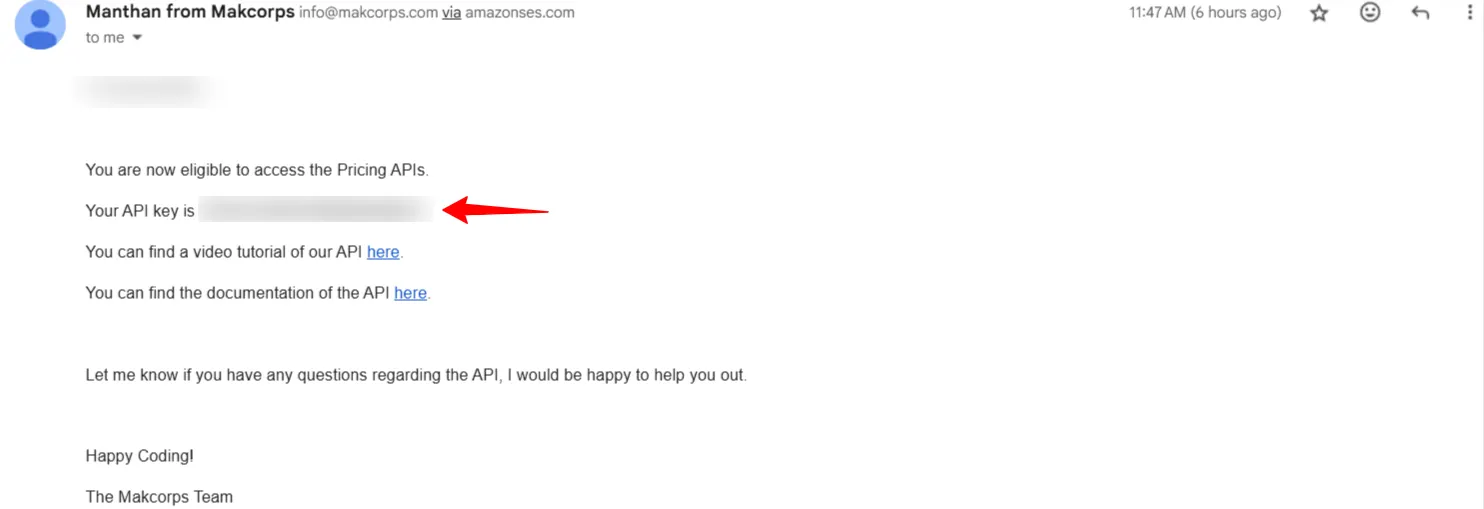
Start by signing up on makcorps.com. After creating your account, you’ll get an email with your API key. Keep it safe, because you’ll need it later in the workflow.
For pulling hotel prices, you’ll be using two APIs:
- Hotel Mapping API – Docs here. This gives you the hotel’s unique mapping ID. Every hotel has one, and you’ll need it before fetching any prices.
- Hotel Price API (Search by Hotel ID) – Docs here. Once you have the mapping ID, this API pulls live hotel prices from different vendors.
The process is simple: find the ID with the first API, then use that ID in the second API to fetch prices. Each API has its own parameters, so check the linked documentation to understand how they work.
Prepare Your Google Sheet
Create a new Google Sheet with two tabs:
- Input – where you’ll enter the hotels you want to track.
- Output – where the pricing data will be stored automatically.
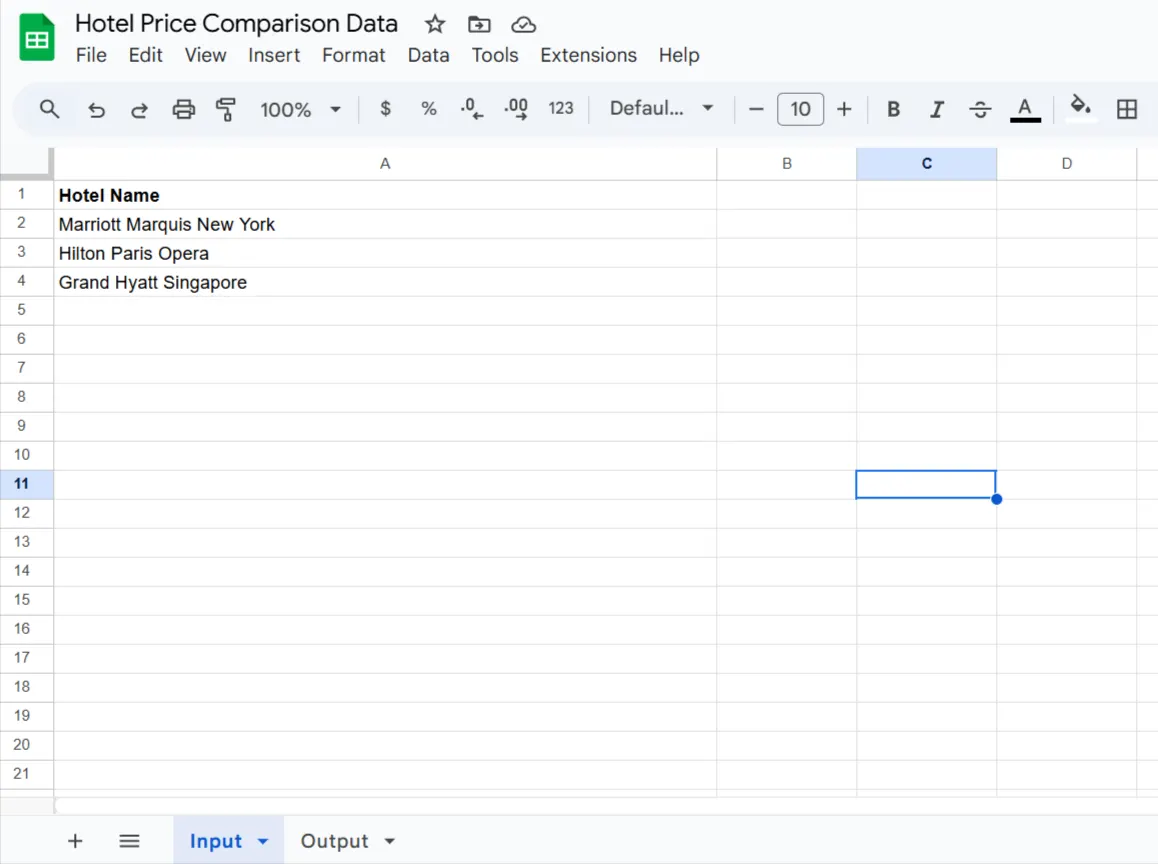
On the Input sheet, add a column called Hotel Name. Enter each hotel along with its city name in the same cell (e.g., Hotel Name + City). This format is required so the Hotel Mapping API can identify the correct hotel ID for the automation.
Create Your Workflow on n8n
Now that everything is ready, let’s move over to n8n.
- Sign up and log in to your n8n account.
- On the dashboard, click Create Workflow. This will open a blank workflow canvas.
Now we’ll add nodes as functions and link them together to build the workflow. Here’s how it works.
Step 1: Add a Trigger Node
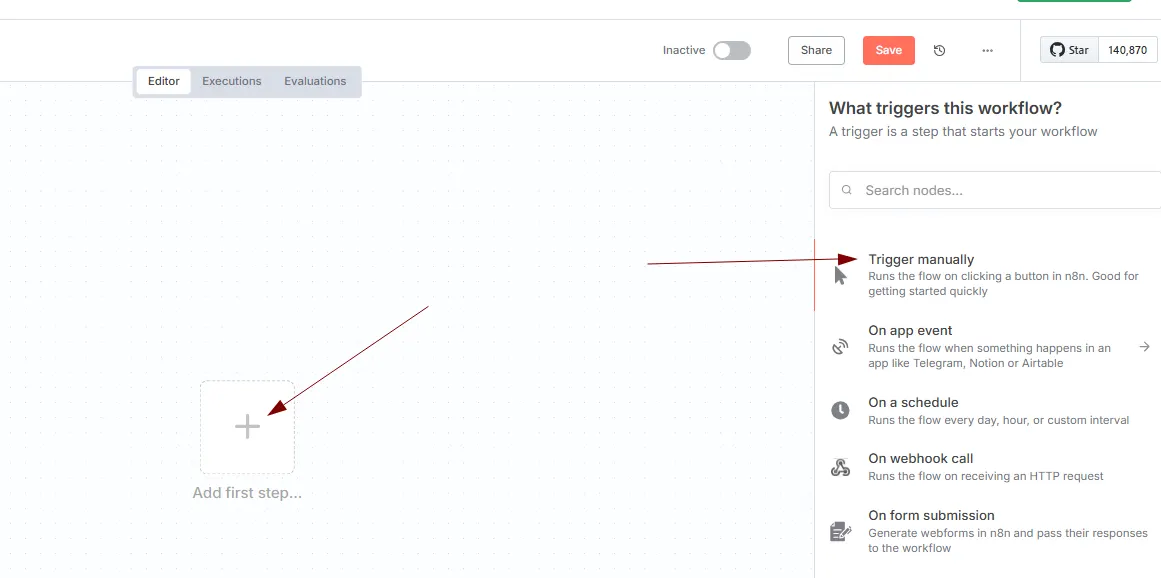
Click on the + icon in your workflow canvas, search for Manual Trigger, and add it. This node will help you execute the full workflow for testing.
Step 2: Get Rows from Google Sheets
Next, we’ll pull the hotel names from your Google Sheet.
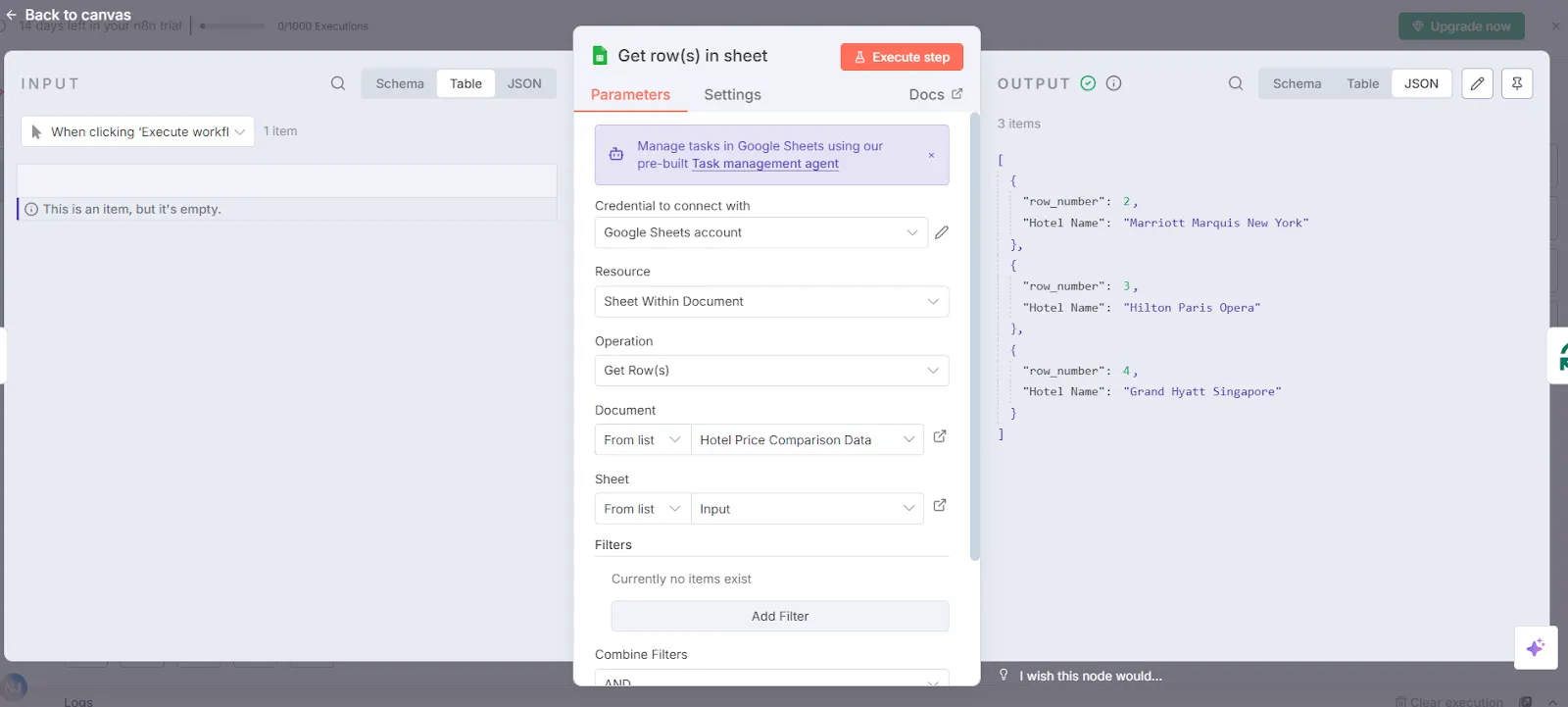
- Add a new node and search for Google Sheets.
- Select the Google Sheets node.
- Configure it as follows:
- Resource → Sheet Within Document
- Operation → Get Row(s)
- Document → Select your Google Sheet (Hotel Price Comparison Data)
- Sheet → Choose the Input tab
- Resource → Sheet Within Document
Once you execute this node, you’ll see all the hotel names listed in the output.
Step 3: Loop Over Items
Next, add the Loop Over Items node.
- On your canvas, click + and select Loop Over Items.
- Set Batch Size to 1.
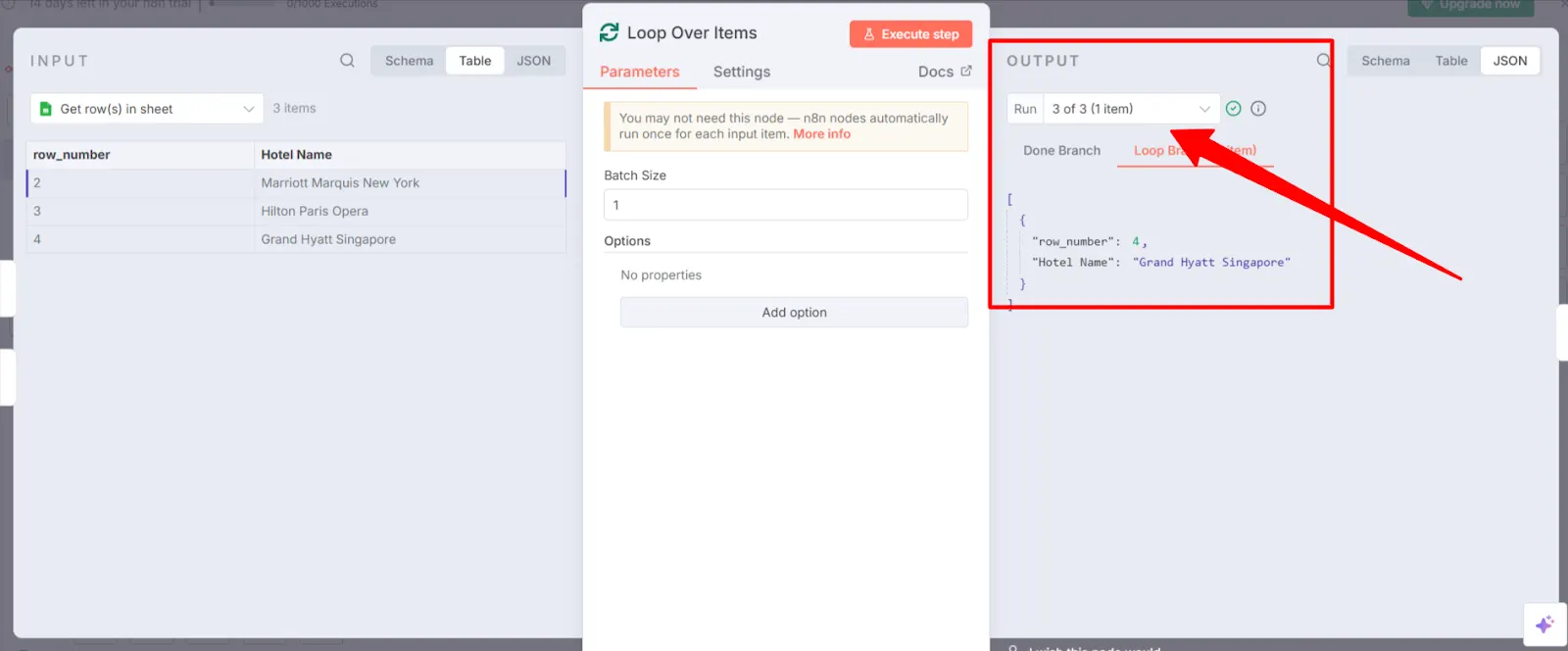
Now you must be wondering why this step is necessary. Well it is because without the loop, n8n would try to process all rows together. By using this node, the workflow handles one row at a time, making sure each hotel is sent through the API correctly.
Once you execute the node, you’ll notice in the output that it creates separate batches. Each batch represents one row from your sheet being processed individually.
Step 4: Edit Fields Node
After looping through each hotel name one by one, the next step is to cleanly map that hotel name into a new field. This is where the Edit Fields node comes in.
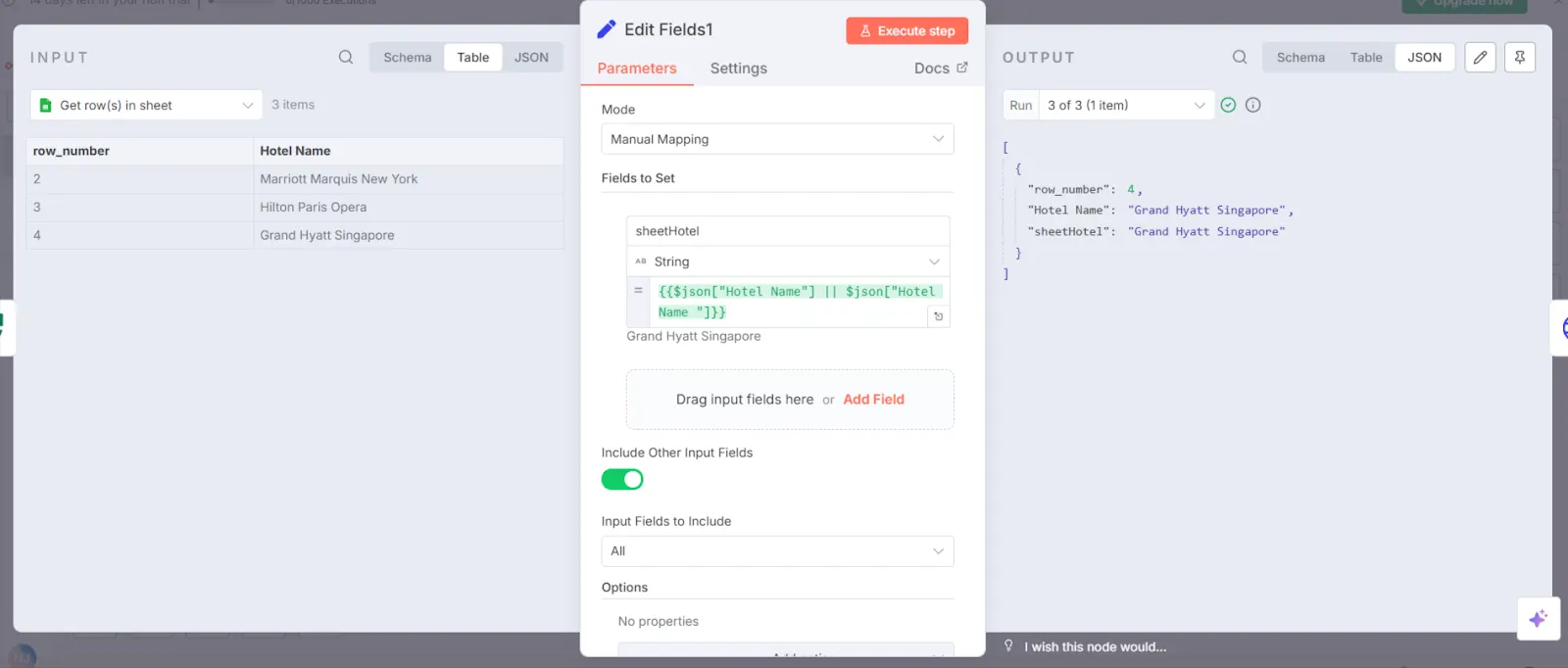
- On your canvas, click + and add the Edit Fields node.
- In Mode, choose Manual Mapping.
- Under Fields to Set, create a new field — here we called it sheetHotel.
- For the value, insert the expression ⬇️:
{{$json["Hotel Name"]}}- This tells n8n to grab the “Hotel Name” value from each row of your Google Sheet and assign it to the new field sheetHotel.
When you run this node, you’ll see in the output that the original data (row number and hotel name) is still there, but now you also have sheetHotel as a separate field.
Step 5: Call the Hotel Mapping API
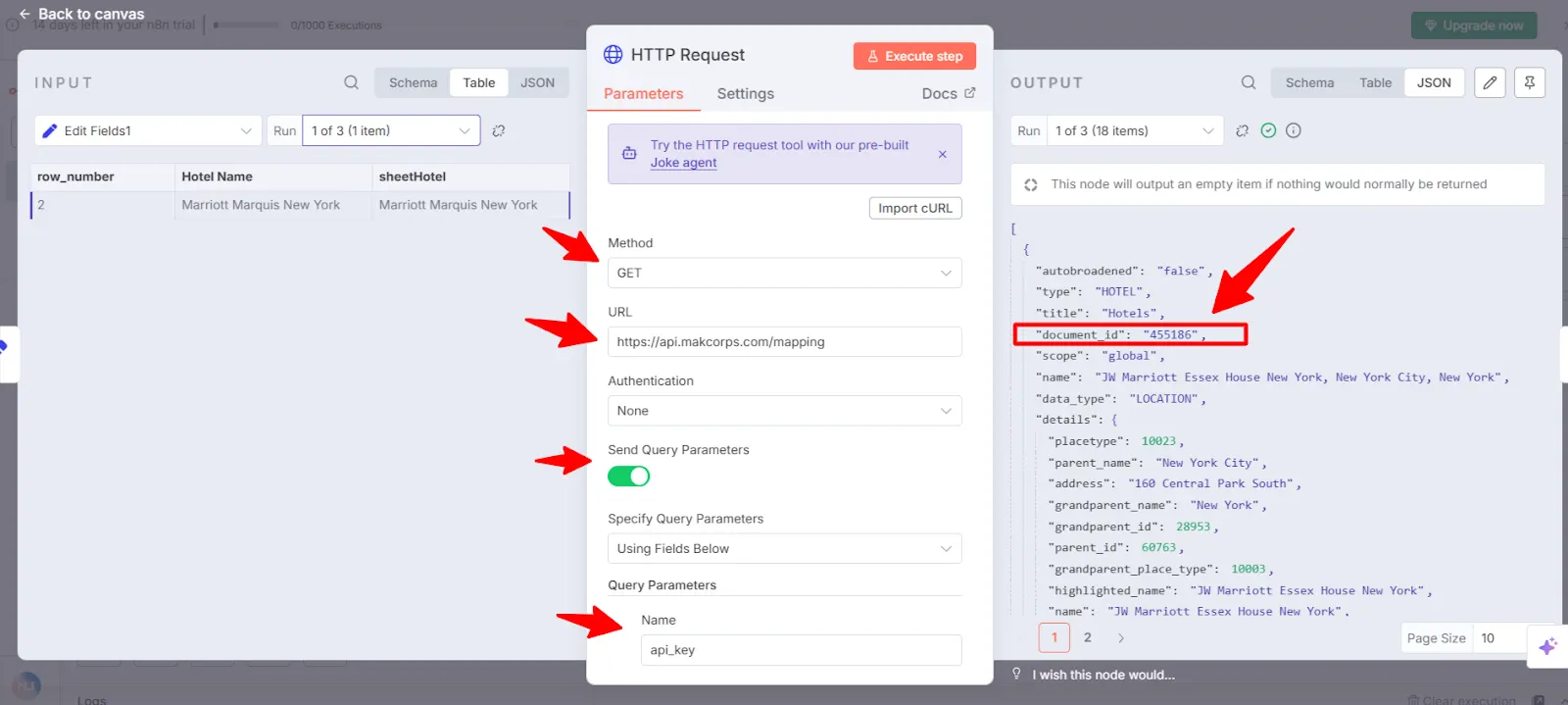
Now it’s time to send our first request to the Hotel Mapping API. This API will return a document_id, which acts as the unique hotel ID we’ll use later to pull pricing data.
- Add a new node and choose HTTP Request.
- Configure it like this:
- Method → GET
- URL → https://api.makcorps.com/mapping
- Authentication → None
- Send Query Parameters → Enable this
- Query Parameters:
- Name → api_key → paste your MakCorps API key here
- Add any other required parameters (check the Hotel Mapping API docs for the full list, such as hotel_name and city_name)
- Name → api_key → paste your MakCorps API key here
- Method → GET
Once everything is set, click Execute Node.
Step 6: JavaScript Code Node
After calling the Hotel Mapping API, you’ll notice something: sometimes it returns more than one possible match for the hotel name. For example, if you search for “Marriott,” the API might return multiple results (Marriott Marquis, Marriott Downtown, Marriott Residence Inn, etc.).
Therefore we need to add the code filters through all the possible matches and automatically selects the best possible hotel. Without it, you’d have to manually check the list of results and pick the right hotel ID yourself, which defeats the purpose of automation.
Copy and paste this code:
// Sheet text from your Set node:
const sheet = ($items('Edit Fields1')[0]?.json?.sheetHotel || '')
  .toLowerCase().replace(/&/g,'&');
const norm = s => (s || '').toLowerCase().replace(/&/g,'&');
const tok  = s => Array.from(new Set(s.replace(/[^\w\s]/g,' ').split(/\s+/).filter(Boolean)));
const STOP = new Set(['new','york','nyc','hotel','hotels','by','the','of','at','in',
                      'manhattan','residence','courtyard','inn','suites','springhill',
                      'fairfield','marriott','club']);
const A = tok(sheet);
const Acore = A.filter(t => !STOP.has(t)); // “marquis” etc.
// score each candidate
const scored = items.map(it => {
  const name = norm(it.json.details?.highlighted_name || it.json.details?.name || it.json.name);
  const B = tok(name);
  const interAll  = A.filter(t => B.includes(t)).length;
  const interCore = Acore.filter(t => B.includes(t)).length;
  // balanced score: reward distinctive-token hits, then overall overlap
  const r1 = interAll / Math.max(A.length, 1);
  const r2 = interAll / Math.max(B.length, 1);
  const jacc = interAll / new Set([...A, ...B]).size;
  const score = interCore * 3 + Math.min(r1, r2) + jacc;
  return { it, score };
}).sort((a,b) => b.score - a.score);
// emit exactly one best item
return [ (scored[0]?.it || items[0]) ];
After running this node, instead of multiple hotels, you’ll only get one hotel with its document_id (the unique hotel ID). This ID is now clean, reliable, and ready to be used in the Hotel Price API to pull vendor pricing.
Step 7: Edit Fields Node (Extract Hotel Details)
After the Code node has selected the best match, we now want to cleanly pull out only the important details from the Mapping API response. This is done using another Edit Fields node.
Here’s what to do:
- Add an Edit Fields node.
- Switch Mode to Manual Mapping.
- Create the following fields:
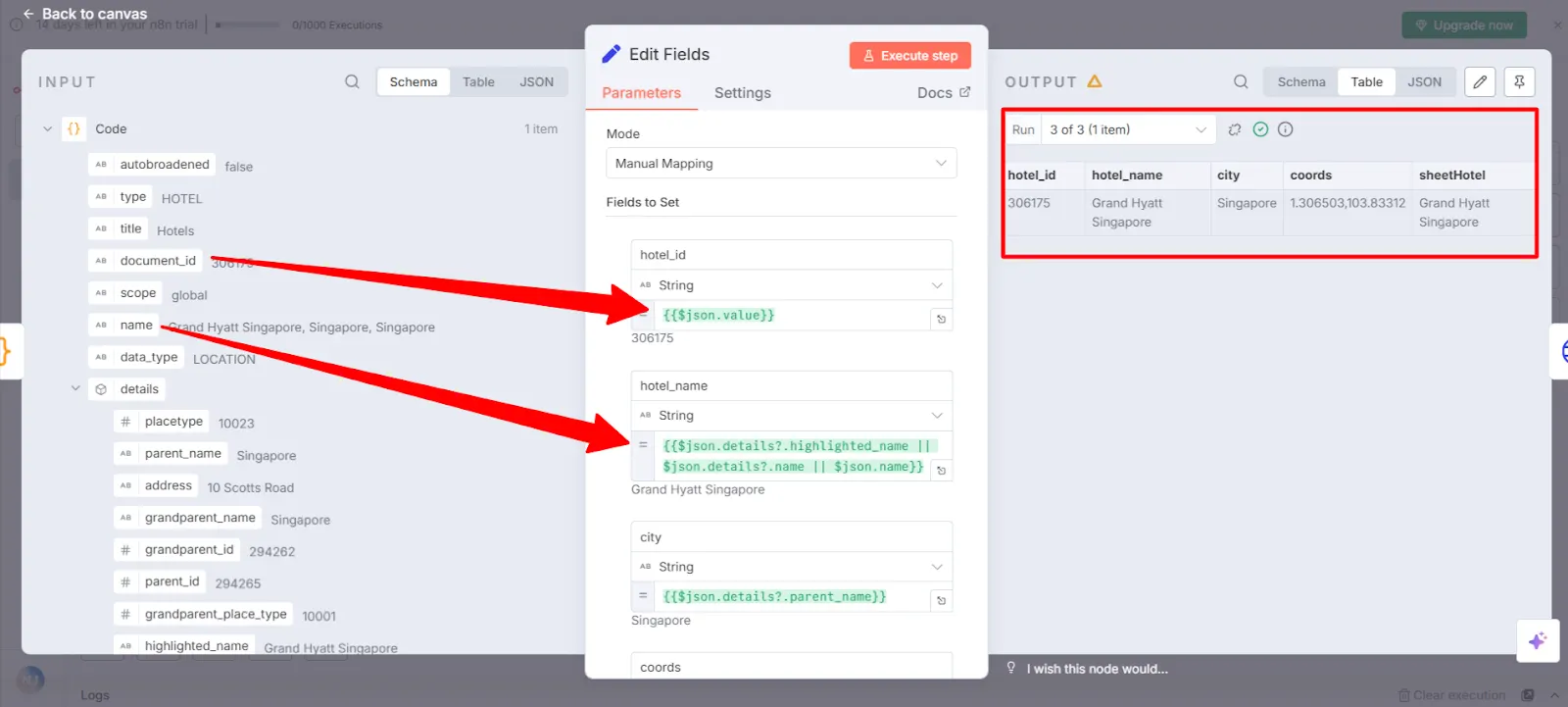
hotel_id →
{{$json.value}}- This extracts the document_id (the unique hotel ID).
hotel_name →
{{$json.details?.highlighted_name || $json.details?.name || $json.name}}- This ensures we always get a clean hotel name, even if some fields are missing.
city →
{{$json.details?.parent_name}}- This picks the city from the Mapping API response.
- coords →
If you want coordinates, you can also pull them here (from latitude and longitude in the API response).
The Mapping API gives back a lot of extra information (address, parent IDs, place types, etc.). We don’t need all of it. This node makes sure we keep only the essential fields we’ll need in the Hotel Price API such as:
- Hotel ID (for the next API call)
- Hotel Name (for reference)
- City (to confirm accuracy)
- Coordinates (optional, but useful if you want to map hotels later)
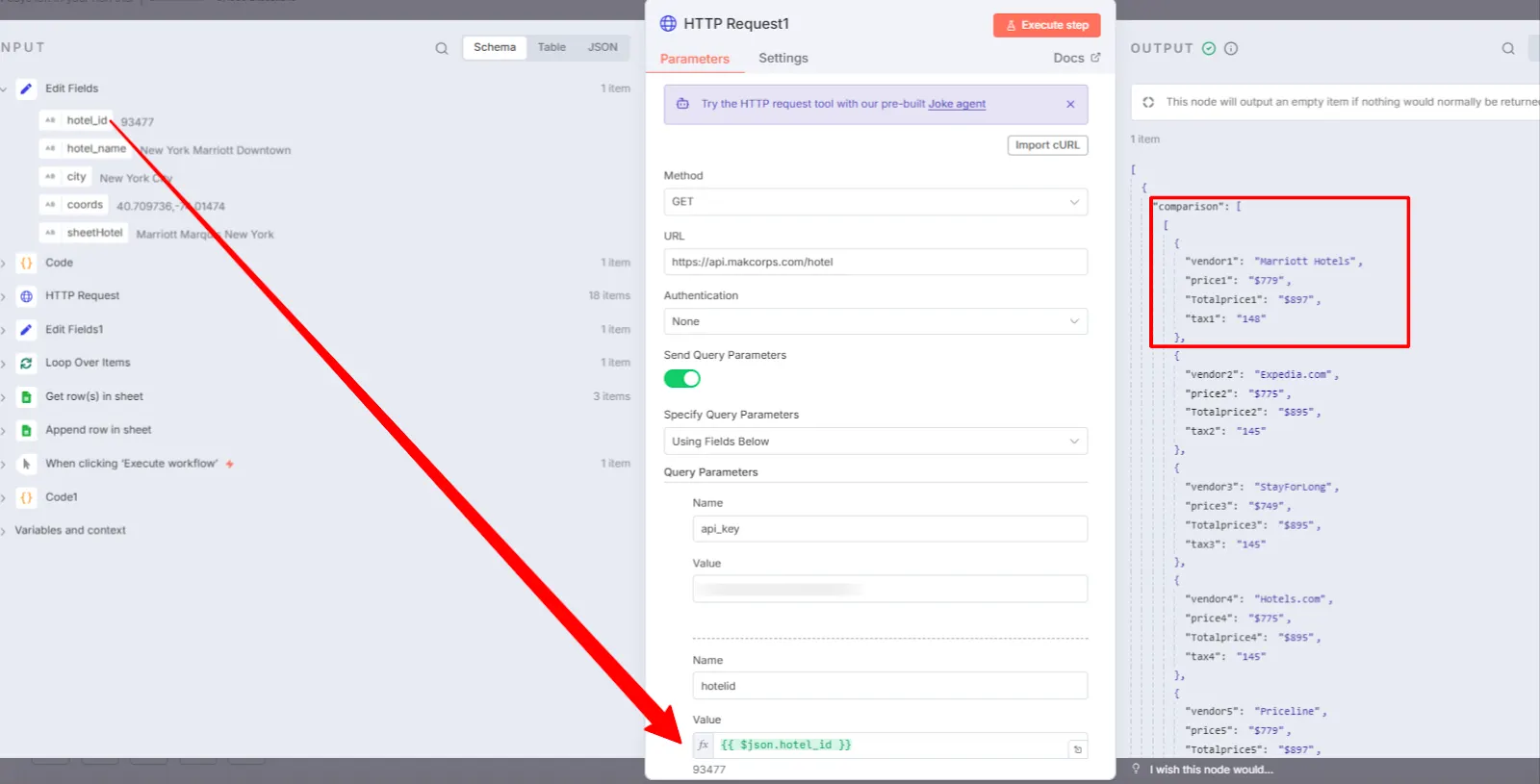
Step 8: Call the Hotel Price API
Now comes the important part, fetching the actual prices. This is where we use the Hotel Price API – By Hotel ID. The endpoint is:
https://api.makcorps.com/hotelAdd a new HTTP Request node and configure it like this:
- Method → GET
- URL → paste the endpoint above
Then add the query parameters:
- api_key → your MakCorps API key
- hotelid → drag and drop the hotel_id from the previous step
- adults → number of adults
- rooms → number of rooms
- checkin → check-in date (YYYY-MM-DD)
- checkout → check-out date (YYYY-MM-DD)
- cur → currency, e.g. USD or any you want
- tax → optional, set true if you want tax included
Once everything is filled, click Execute Node.
You’ll now see the API response in JSON format. Inside the comparison list, each vendor is shown with:
- Vendor name
- Price
- Tax
- Total Tax
This is the data we want to pull. But there missing 1 thing missing: the hotel name. For that follow the next step.
Step 9: Organize the Data with a Code Node
From the HTTP Request node, we now have the price comparison data from different vendors. But the issue here is: if we directly push this into Google Sheets, we won’t know which prices belong to which hotel.
To fix this, we’ll add a Code node and include the hotel details (like name and city) with each vendor’s pricing.
- Add a Code node.
- Set Mode to Run Once for All Items.
- Copy and paste this JavaScript code inside:
// Get hotel context from your Set node (rename if yours isn't "Edit Fields")
const meta = $items('Edit Fields')[0].json;
// The API returns: { comparison: [ [ { vendor1, price1, tax1, Totalprice1 }, ... ] ] }
const cmp = $json.comparison || [];
const arr = Array.isArray(cmp[0]) ? cmp[0] : cmp;
// helper to convert "$779" -> 779
const toNum = v => (typeof v === 'string') ? Number(v.replace(/[^0-9.-]/g, '')) : (v ?? null);
const rows = (arr || []).map(o => {
  let vendor = null, price = null, tax = null, total = null;
  for (const [k, v] of Object.entries(o)) {
    const key = k.toLowerCase();
    if (key.startsWith('vendor')) vendor = v;
    else if (key.startsWith('totalprice')) total = v;
    else if (key.startsWith('price')) price = v;
    else if (key.startsWith('tax')) tax = v;
  }
  return {
    json: {
      sheet_hotel: meta.sheetHotel || null,
      mapped_hotel: meta.hotel_name || null,
      hotel_id: meta.hotel_id || null,
      city: meta.city || null,
      vendor,
      price: toNum(price),
      tax: toNum(tax),
      total: toNum(total)
    }
  };
});
// If nothing parsed, return a placeholder row
return rows.length ? rows : [{
  json: {
    sheet_hotel: meta.sheetHotel || null,
    mapped_hotel: meta.hotel_name || null,
    hotel_id: meta.hotel_id || null,
    city: meta.city || null,
    note: 'No vendor rows found in response'
  }
}];4. Click Execute Node.
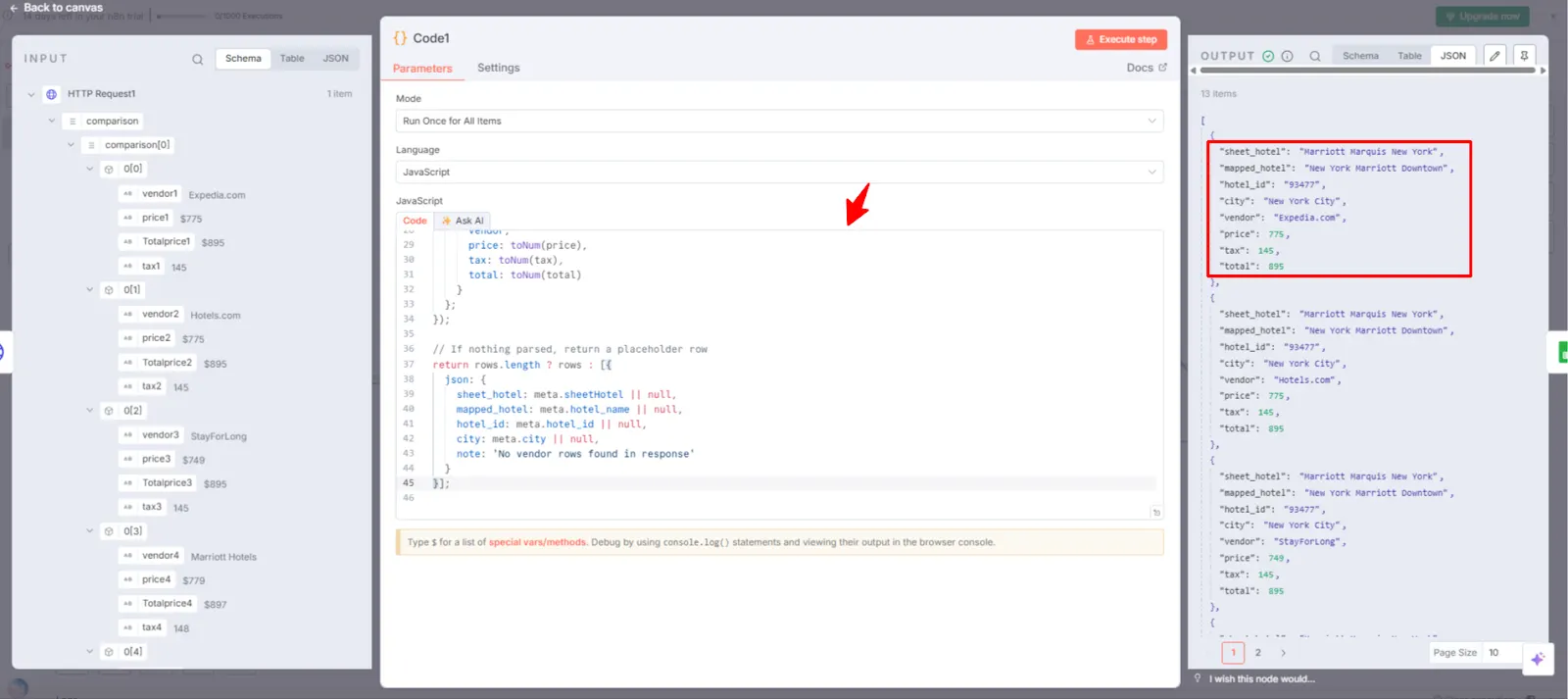
Now, as you can see in the screenshot, the output also includes the hotel name. With that in place, we’re ready to send the data into Google Sheets.
Step 10: Append Data to Google Sheets
We’ve got the hotel names, IDs, cities, and vendor prices all organized. Now it’s time to send everything into Google Sheets so you can see the results in a clean table.
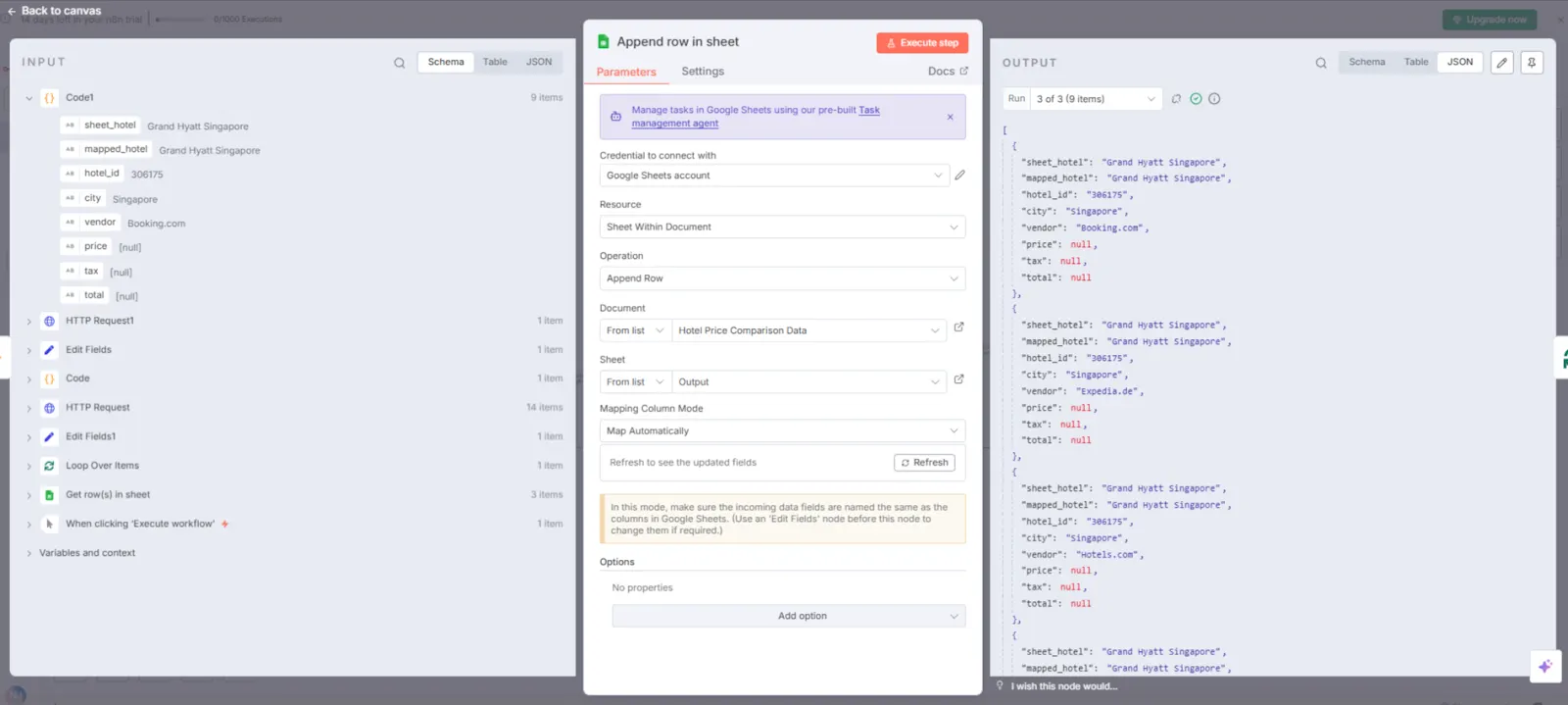
- Add a new node and select Google Sheets and then select “append row in sheet”.
- Set the Operation to Append Row.
- Choose your spreadsheet (Hotel Price Comparison Data).
- Under Sheet, pick the Output tab we created earlier.
- Set Mapping Column Mode to Map Automatically.
Click Execute Node and boom – the data will be shown in the Output sheet.
Download the Blueprint and Get Started
You don’t have to build this workflow from scratch – I’ve got you covered. 👉 Download the ready-made blueprint here.
Once you import it into your n8n account, just make a few quick changes:
- Replace the API key with your own from MakCorps.
- Connect your own Google Sheet (create a fresh one if needed).
- Update every node that points to the sheet with your new spreadsheet and tabs.
- Don’t forget to add your hotel names along with their city in the Input tab – otherwise the workflow won’t know which hotels to pull data for.
That’s it! In just a few minutes, you’ll have an automated system pulling live hotel price data from multiple vendors directly into your Google Sheet.
Conclusion:
Manually hopping between booking sites to compare hotel prices is not just exhausting but also a waste of time you could spend growing your business. With MakCorps API + n8n, you’ve now got a simple way to automate it all neatly and organised in Google Sheets. Without having to hire a developer.
You can save your money and most important asset your time with this workflow. So, just download the blueprint, import it in your n8n workflow and start pulling live hotel prices.
👉 Sign up for MakCorps now and get 30 free API calls to begin with.
Additional Resources
Related reading
More articles to help you stay informed and explore related topics.
How to Pull Hotel Prices for Any City with n8n and Makcorps API
If you need hotel price data, you already know how tricky it can get. Travel agencies rely on it to stay competitive, market researchers depend on it for accur…

How I Built Booking.com Hotel Price Finder with Loveable
Do you want an easier way to grab hotel prices from Booking? Maybe you’re a developer who doesn’t want to start from scratch, or a no-coder who just wants data…