
How to Pull Hotel Prices for Any City with n8n and Makcorps API
By Neha Jangid 7 min read Updated
If you need hotel price data, you already know how tricky it can get. Travel agencies rely on it to stay competitive, market researchers depend on it for accurate insights, and businesses in the tourism sector use it to make informed decisions. The problem is, getting that data usually means hiring a developer, writing complex code, or trying to scrape sites that don’t exactly make it easy. Anyone who’s scraped travel platforms before knows how much of a headache it can be.
The good news is you don’t have to go through that. In this guide, we’ll walk you through how to pull hotel prices for any city using Makcorps API together with n8n, a no-code automation tool that makes the whole process straightforward.
And at the end, you’ll also get a blueprint of the full workflow so you don’t have to build everything from scratch.
So, let’s get started.
What You’ll Need
- Makcorps API
- An n8n account
- A Google Sheet
If you prefer watching, here’s a short video tutorial. Otherwise, you can continue reading the step-by-step guide below.
Step 1: Get Your API Key and Understand the Requirements
Before we start pulling hotel prices, you’ll need an API key from Makcorps. The process is simple:
- Head over to Makcorps and sign up for an account.
- After registering, you’ll receive a verification email.
- Once you confirm your email, your API key will be sent to you with your API key.
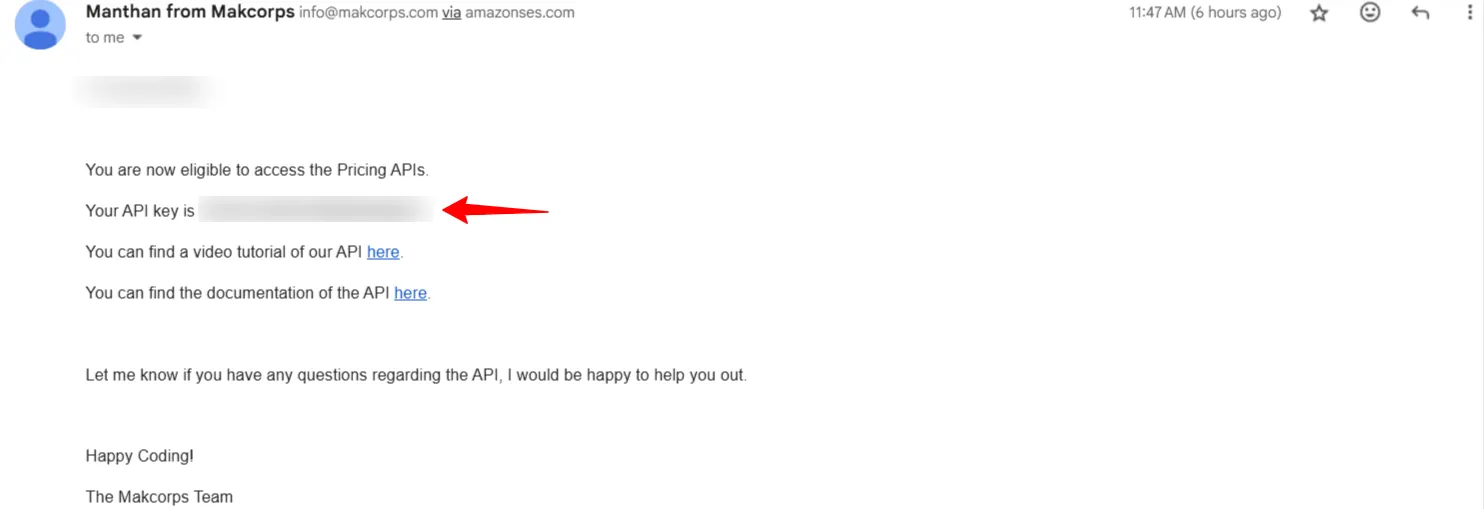
This key is what allows you to access Makcorps data and connect it with your automation in n8n. Keep it safe, you’ll need it in the steps ahead.
Now, there are two parts of the API you’ll want to check out:
- Hotel Price API by City ID – see documentation
- Hotel Mapping API for City IDs – see documentation
The first gives you hotel prices once you have the city ID, and the second helps you find that city ID in the first place.
Take a moment to go through the documentation so you’re clear on the requirements and endpoints. Once that’s done, we’ll move on to preparing the Google Sheet where we’ll pull the data.
Step 2: Set Up Your Google Sheet
Now that you know the requirements and have your API key ready, the next step is preparing a Google Sheet to store the hotel data.
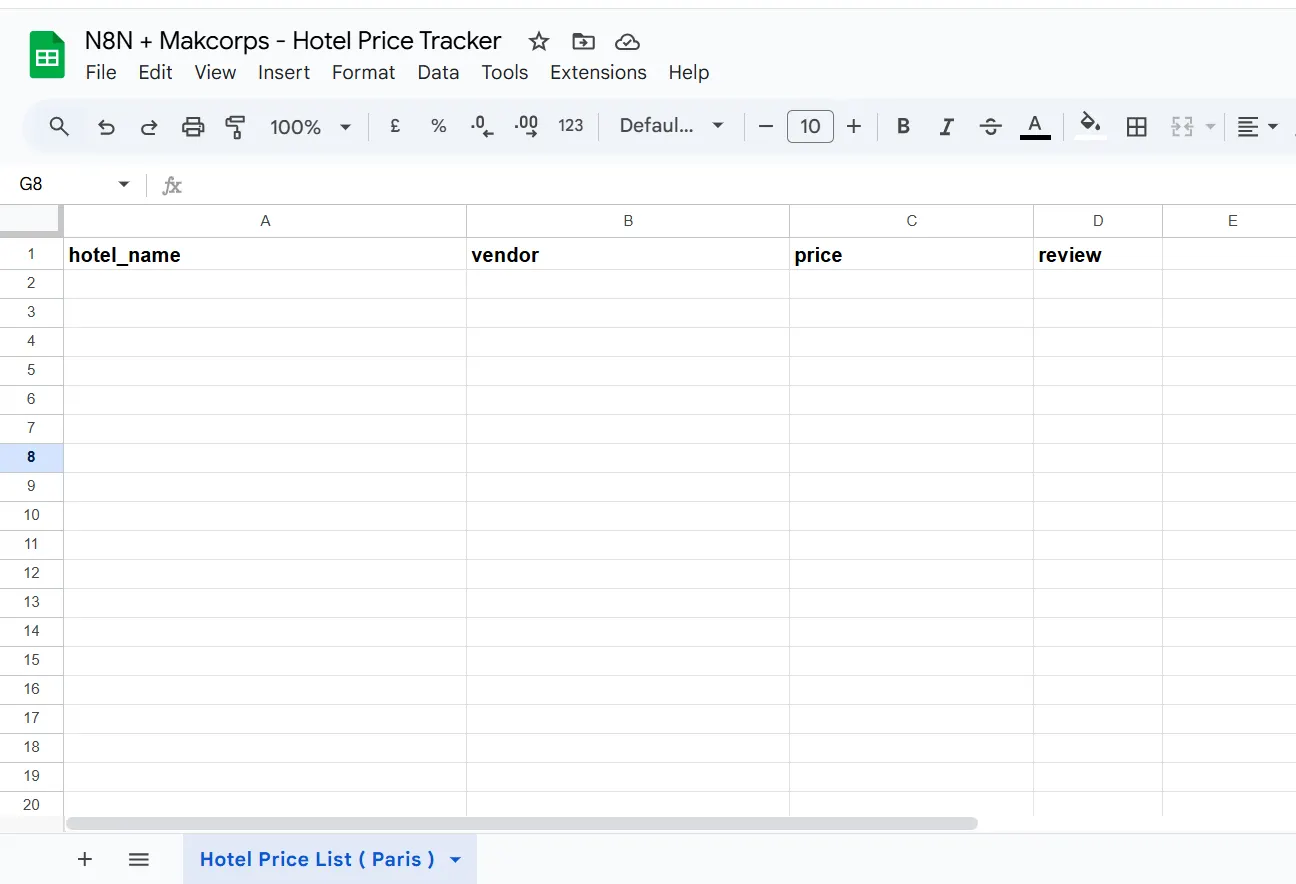
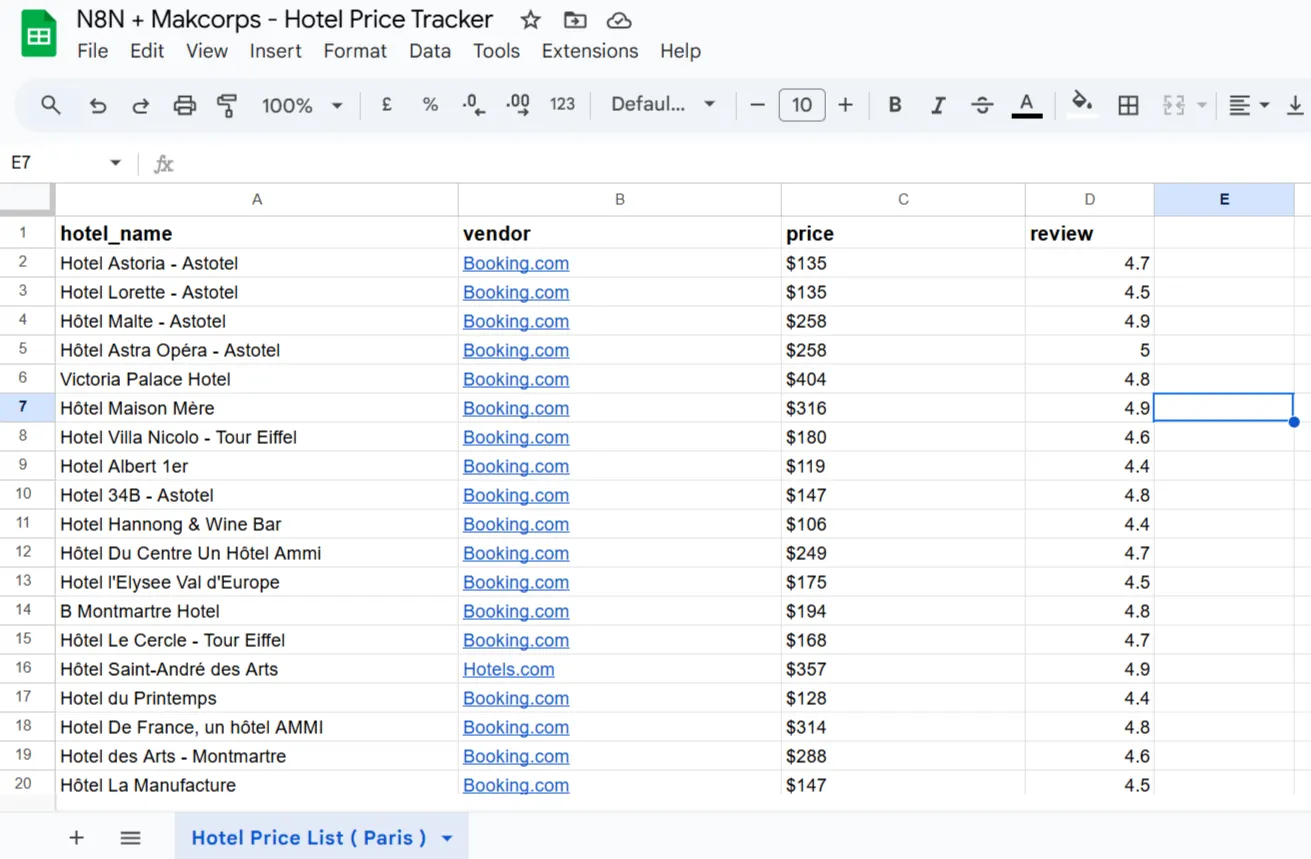
For this example, I’m pulling hotel prices for Paris, but you can replace it with any city you want. The sheet has the following columns:
- hotel_name – the name of the hotel.
- vendor – the platform or provider listing the price.
- price – the cost of the hotel room.
- review – customer review data.
I’ve named the sheet “Hotel Price List (Paris)” so it’s easy to recognise later when we connect it inside n8n.
Here’s what it looks like:
I’ve kept the sheet simple, but if you’ve gone through the API documentation, you’ll see there’s more data you can pull, like ratings, amenities, or booking links. You can add extra columns if you want to capture those as well.
Step 3: Start Building the Automation in n8n
With the API key and Google Sheet ready, it’s time to build the automation.
1. Create an account on n8n if you haven’t already.
2. Once you’re logged in, head over to the Workflows section and click on Create Workflow.
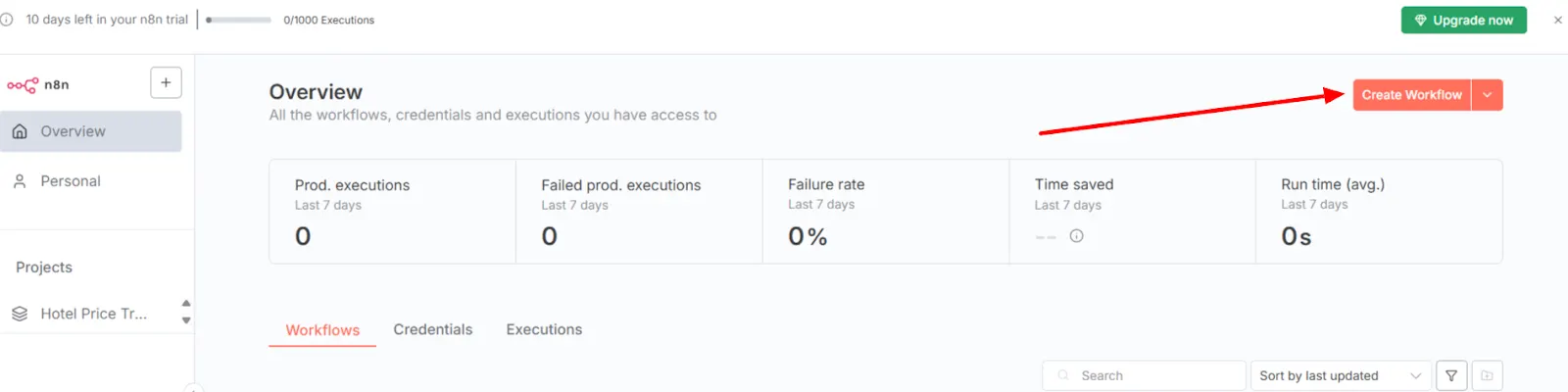
3. A new dashboard will appear. Here, you can give your workflow a clear name.
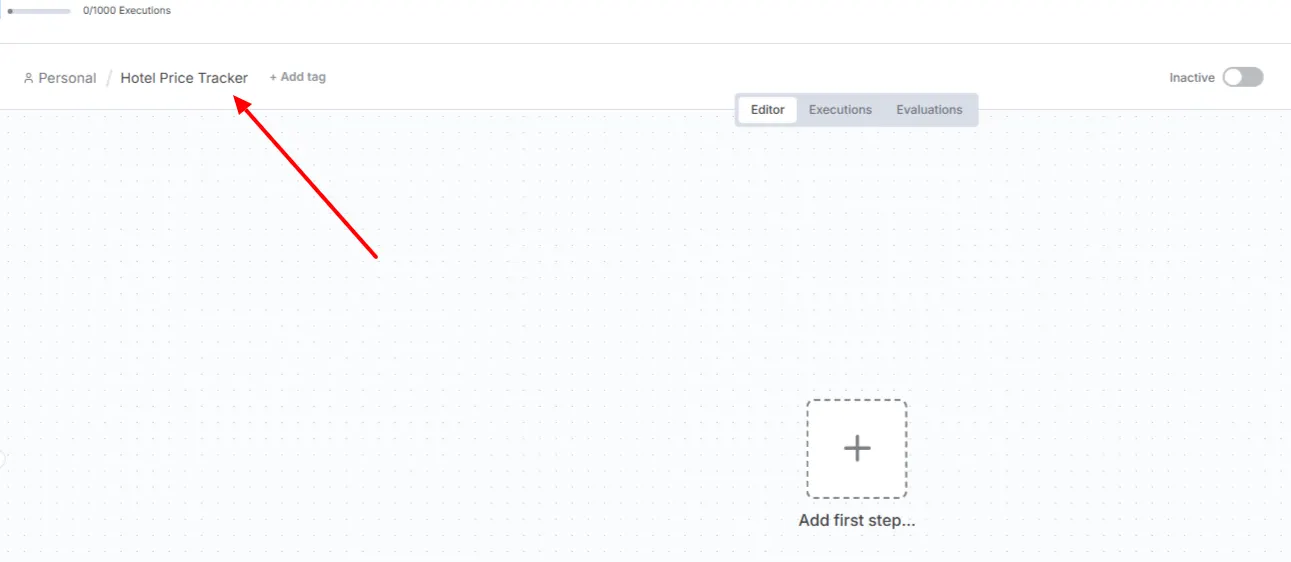
Step 4: Add Your First Node (HTTP Request)
Inside your workflow, the first thing you’ll need to do is add an HTTP Request node. This node allows n8n to connect with the Makcorps API and fetch data. Think of it as the bridge between your workflow and the API.
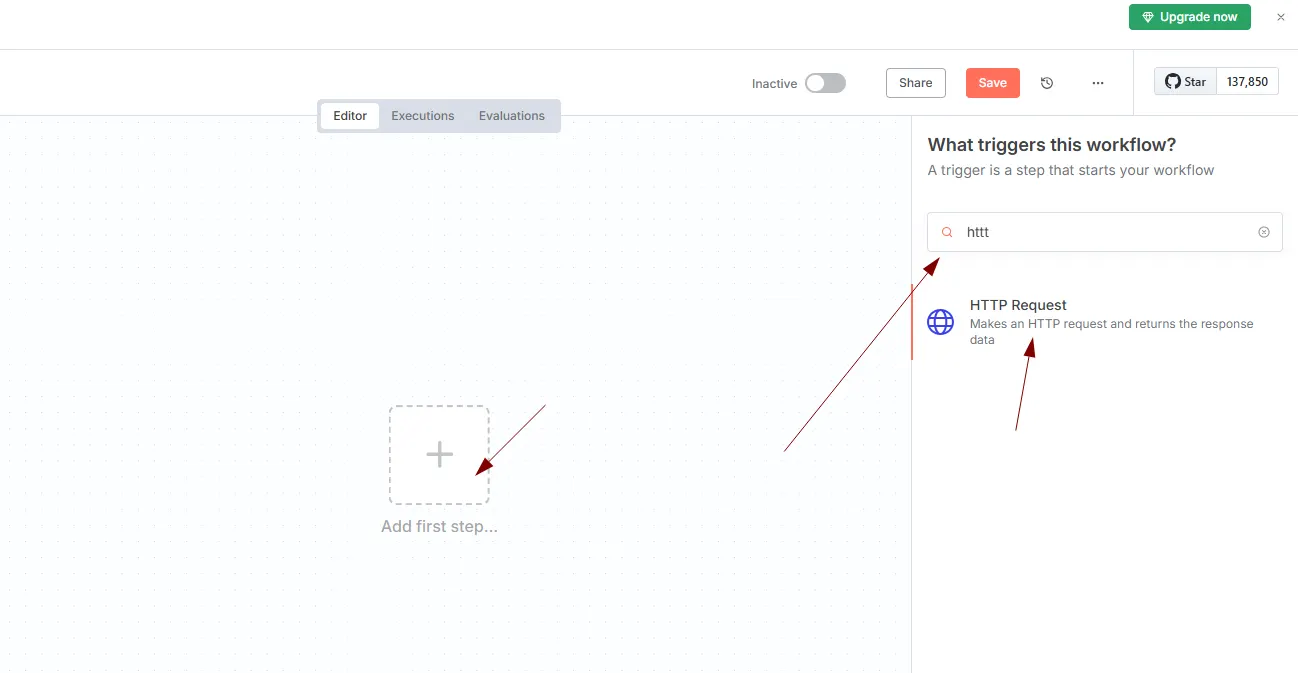
- Click on the “Add first step” box in the workflow editor.
- Search for HTTP Request and select it.
- For the first request, we’ll be using the Hotel Mapping API, because we need the city ID before we can pull prices.
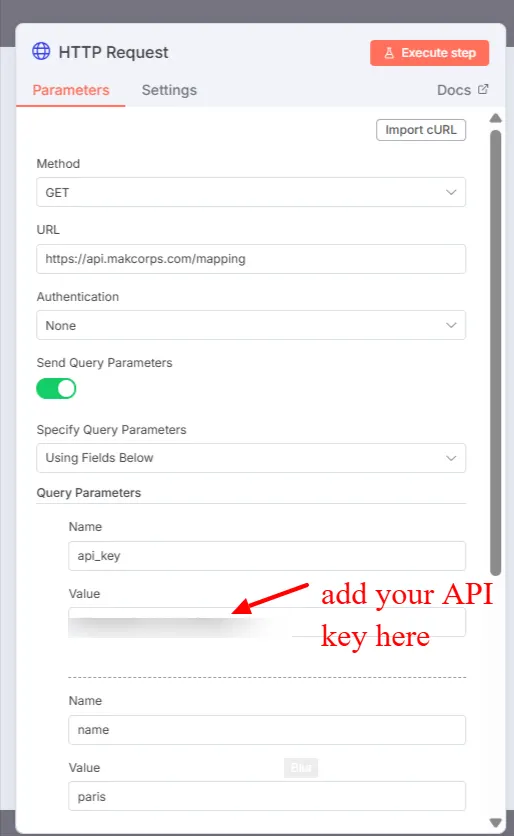
Here’s how the setup looks:
In this example:
- Method: GET
- URL: https://api.makcorps.com/mapping
- Query Parameters: add your API key and the city name (here it’s set to paris).
Once that’s done, click Execute Step to test the request. If everything is entered correctly, you’ll get back the city ID in the response.
Step 5: Add the Second HTTP Request for Hotel Prices
Now that you’ve pulled the city ID from the first request, it’s time to set up another HTTP Request node to fetch the actual hotel prices.
- Add a new node by clicking the plus (+) button in your workflow.
- Search for HTTP Request and select it.
- Use the Hotel Price API by City endpoint.
From your first request, you’ll see the document_id in the output panel. This is the city ID. Drag and drop it into the city_id field of this new request.
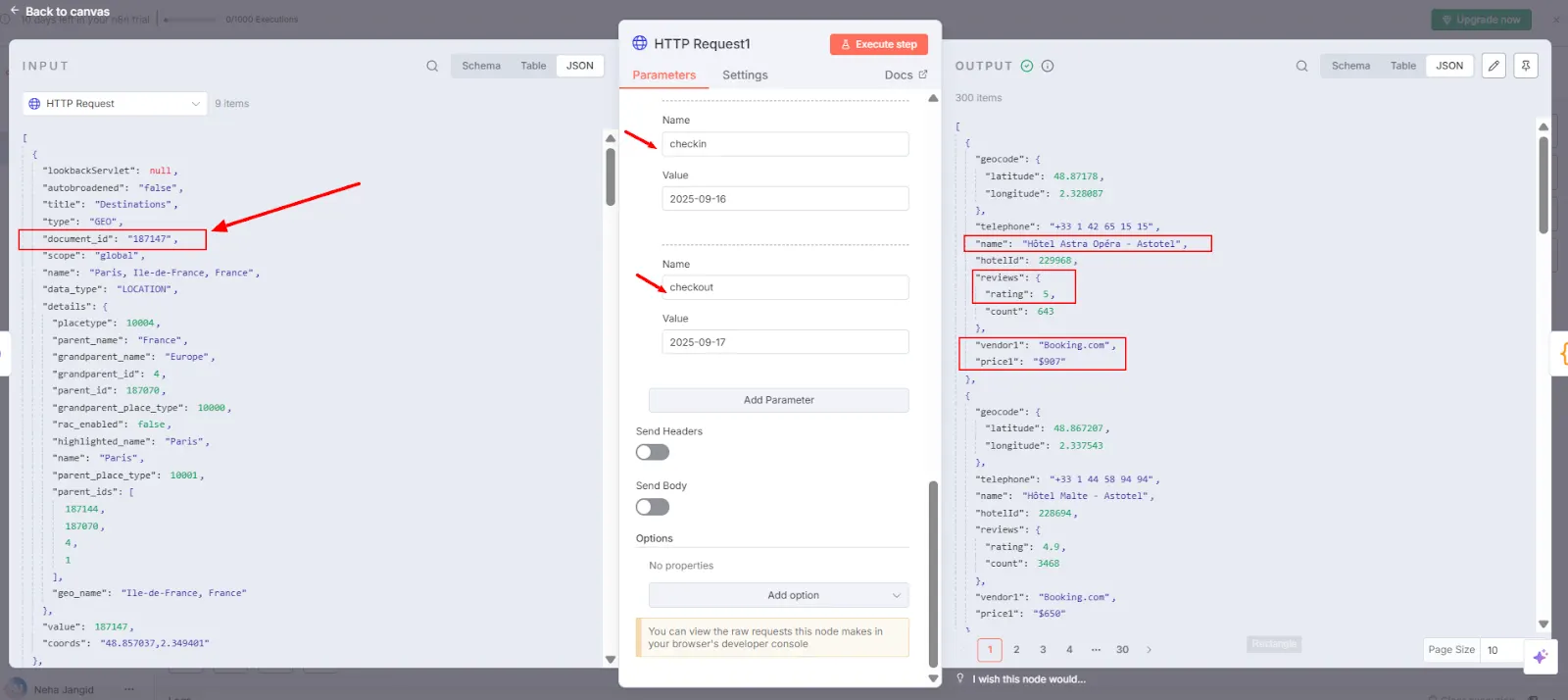
Now, add the required query parameters step by step (don’t skip, as the API won’t work without them):
- api_key – your Makcorps API key.
- city_id – the city ID you just retrieved.
- checkin – the check-in date.
- checkout – the checkout date.
- rooms – how many rooms you want prices for.
- adults – how many adults are staying in those rooms.
- cur – the currency you’d like the results in (e.g., EUR, USD, GBP).
- pagination – for controlling the number of results per request.
Here’s an example of the endpoint in action:
https://api.makcorps.com/city?cityid=60763&pagination=0&cur=USD&rooms=1&adults=2&checkin=2023-12-25&checkout=2023-12-26&api_key=YOUR_API_KEYAnd here’s what the setup looks like inside n8n:
After filling in these fields, click Execute Step. Sometimes you may need to run it twice before prices display in the output panel. When it works, you’ll see hotel details like:
- hotel name
- vendor (for example, Booking.com)
- price
- reviews (ratings and count)
Note: Always enter the parameters step by step as listed above. Missing one can cause the request to fail.
Step 6: Organize the Data with a JavaScript Node
The hotel data you get back from the API is detailed but not immediately ready for a spreadsheet. To make it usable, we’ll process it with a JavaScript Code node.
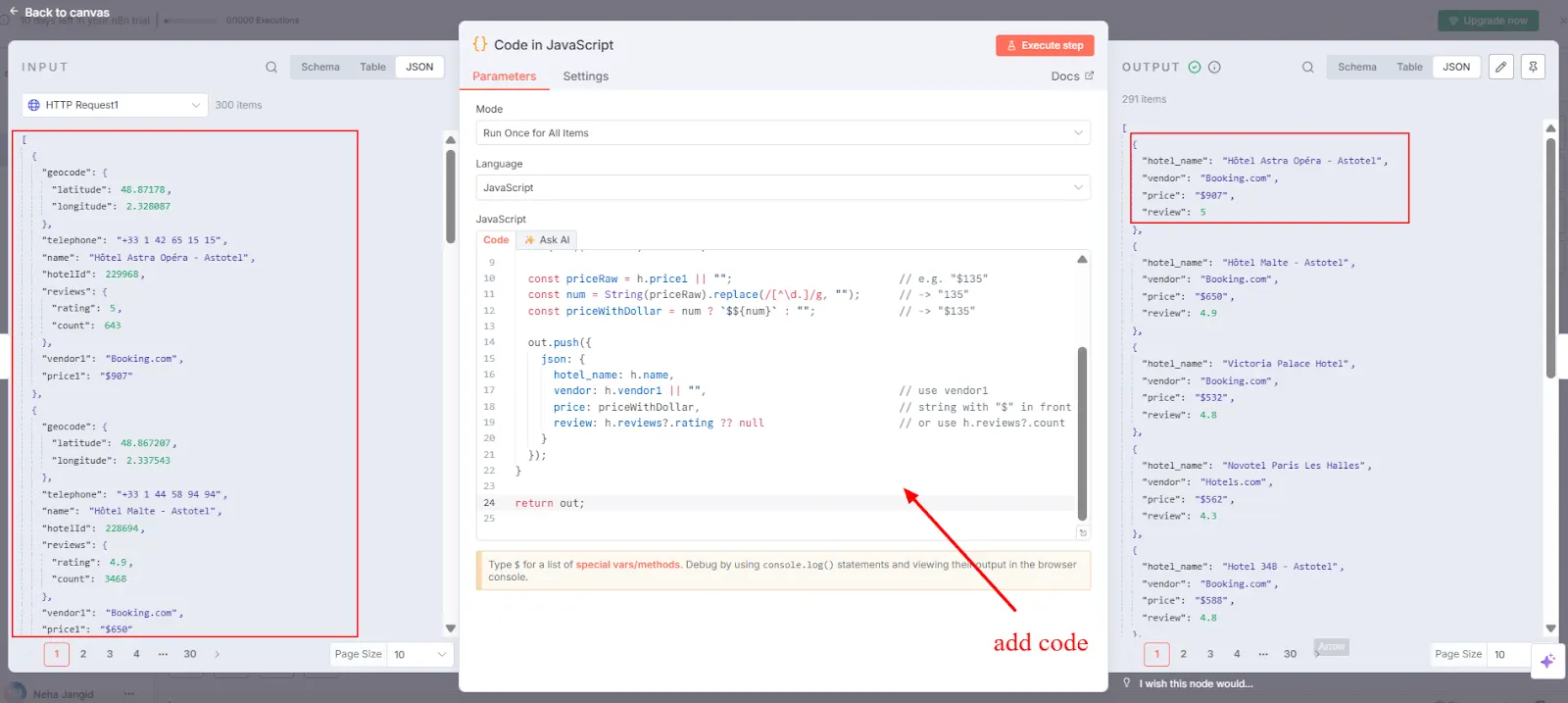
- Add a new node to your workflow and select Code.
- Choose JavaScript as the language.
- Copy and paste the following code into the editor:
const out = [];
items[0].json.forEach(h => {
  const priceRaw = h.price1 || "";
  const num = String(priceRaw).replace(/[^\d.]/g, "");
  const priceWithSymbol = num ? `€${num}` : ""; // change to € for Euro or any other currency
  out.push({
    json: {
      hotel_name: h.name,
      vendor: h.vendor1 || "",
      price: priceWithSymbol,
      review: h.reviews?.rating ?? null
    }
  });
});
return out;This code does a few important things:
- Picks out the hotel name, vendor, price, and review rating.
- Cleans up the price so it displays with a currency symbol.
- Structures everything neatly for the next step.
Once you hit Execute Step, check the output on the right side of the screen. You should now see clean, organised data, ready to be sent straight into your Google Sheet.
Step 7: Send the Data to Google Sheets
With the data structured, the final step is to push it into your Google Sheet.
- Add a new node and search for Google Sheets.
- From the actions, choose Append or Update Row.
- Connect your Google account if you haven’t already.
- Select your document — N8N + Makcorps – Hotel Price Tracker.
- Pick the sheet tab you created earlier — Hotel Price List (Paris).
Now it’s time to map the values. In the Google Sheets node, you’ll see fields for each column in your sheet. Instead of typing anything, drag and drop the values from the input panel on the left into the correct fields:
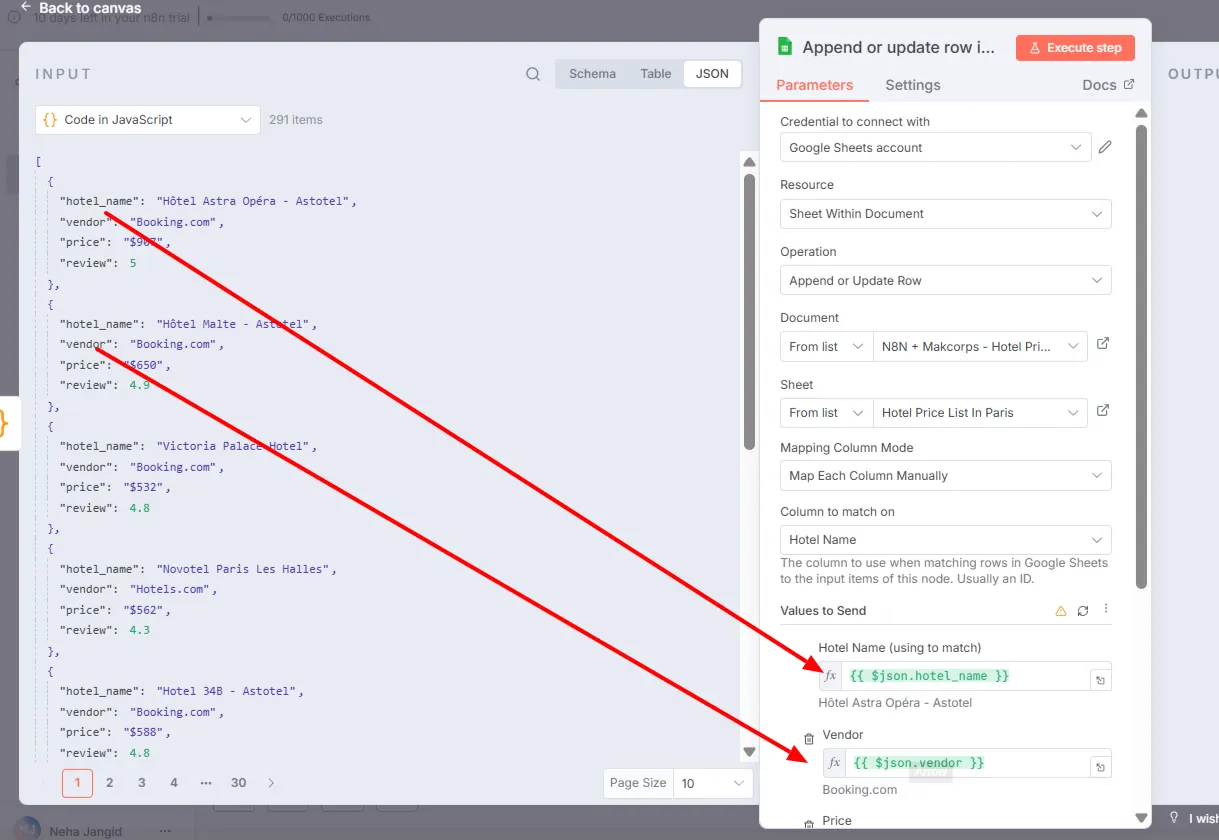
- Hotel Name → drag {{$json.hotel_name}}
- Vendor → drag {{$json.vendor}}
- Price → drag {{$json.price}}
- Review → drag {{$json.review}}
Here’s how it looks in practice:
Once everything is mapped, click Execute Step. The node will take the values from the API output and send them into your Google Sheet, filling each column with the right information.
Step 8: Test, Save, and Import the Blueprint
Once your Google Sheets node is set up, run the workflow and check the data flowing into your sheet. You should now see hotel names, vendors, prices, and reviews neatly added to the right columns.
To make it easier, we’ve also prepared a blueprint of this workflow. Instead of building everything from scratch, you can simply import the file into your own n8n account:
- Go to your n8n dashboard.
- Click on the menu (three dots) in the top-right corner.
- Choose Import from File.
- Upload the blueprint JSON file.
That’s it — you’ll have the entire setup ready to use and customise for your own needs.
Wrapping Up:
Scraping travel sites or writing custom scripts isn’t just time-consuming, it’s frustrating. With Makcorps API and n8n, you now have a clean, automated way to track hotel prices in any city directly into a Google Sheet, requiring no code.
Ready to take the next step? Start automating your hotel price tracking today with Makcorps. Sign up now and get 30 free API calls to begin with.
Additional Resources:
- Extract Hotel Prices from Multiple Vendors Using Google Sheet API
- Build a Hotel Price Tracker with Loveable
- Build a Booking Hotel Price Finder with Loveable
- Track Cheapest Hotel Prices Across Vendors Using Google Sheet
- Track Hotel Deals Under Budget Using Hotel Price API
- Extract Booking.com Data with Python and Makcorps API
- Best Lighthouse Alternatives
Related reading
More articles to help you stay informed and explore related topics.
Pull Hotel Price Data from Multiple Vendors with MakCorps API and n8n
Comparing hotel prices online can feel like a never-ending game. One site shows $555, another jumps to $621, and by the time you’ve checked a third, the first…
How I Built Booking.com Hotel Price Finder with Loveable
Do you want an easier way to grab hotel prices from Booking? Maybe you’re a developer who doesn’t want to start from scratch, or a no-coder who just wants data…