
Extract Hotel Price Data From Multiple Vendors Using Google Sheet and Hotel Price API
By Neha Jangid 10 min read Updated
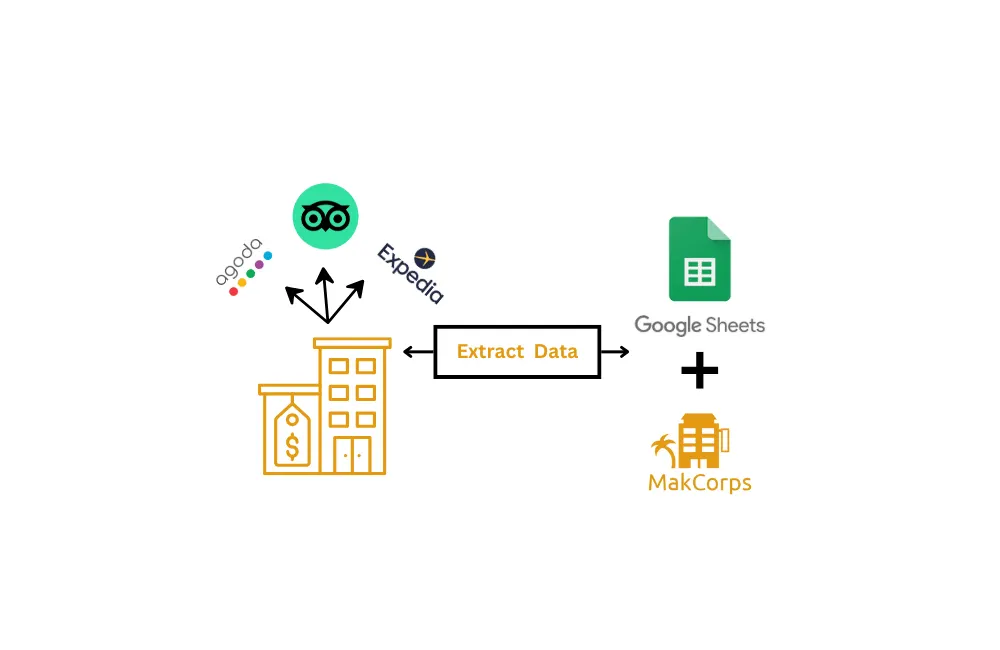
Tracking hotel prices across multiple vendors is a headache. Hotel rates fluctuate constantly, different sites display prices in various formats, and manually checking them takes forever. Most solutions require coding knowledge which makes it difficult for non-programming users.
Luckily, you don’t need to be a developer to extract hotel price data efficiently. In this guide, we’ll show you how to use Google Sheets and Makcorps Hotel Price API to pull real-time prices from multiple vendors and highlight the cheapest price offered for a particular hotel, all without writing a single line of code
To make things even easier, at the end of this blog, you will get a ready-to-use Google Sheet template with everything set up for you.
Stick around till the end to grab your free copy!
What You’ll Need to Get Started
1. Makcorps API Key
To access hotel mapping and pricing data, you’ll need an API key from Makcorps. Sign up to receive 30 free API requests, with each API call counting as 1 request. You can test the API and upgrade your plan based on your data needs from here.
2. Google Sheets
This is where we’ll organize and extract the data.
3. API Requirements
We’ll be using two APIs:
- Hotel Mapping API – Retrieves the hotel ID based on the hotel name. (Requires: API key, hotel name)
- Hotel Price API (Search by Hotel ID) – Fetches real-time pricing data. (Requires: API key, hotel ID, number of adults, room count, check-in, and check-out dates and currency code if required in any other than USD)
Once set up, these APIs will work together to extract hotel prices seamlessly into your Google Sheet. Check out the documentation for the Hotel Mapping API and Hotel Price API to learn more.
Step-by-Step Guide to Extract Hotel Prices Using Google Sheets and Hotel Price API
To get accurate and real-time hotel price data, make sure to follow each step carefully. Missing any step may lead to errors or incomplete data extraction.
1. Get Your Makcorps API Key
- Sign up here.
- After signing up, you’ll receive an email to verify your account—make sure to complete this step.
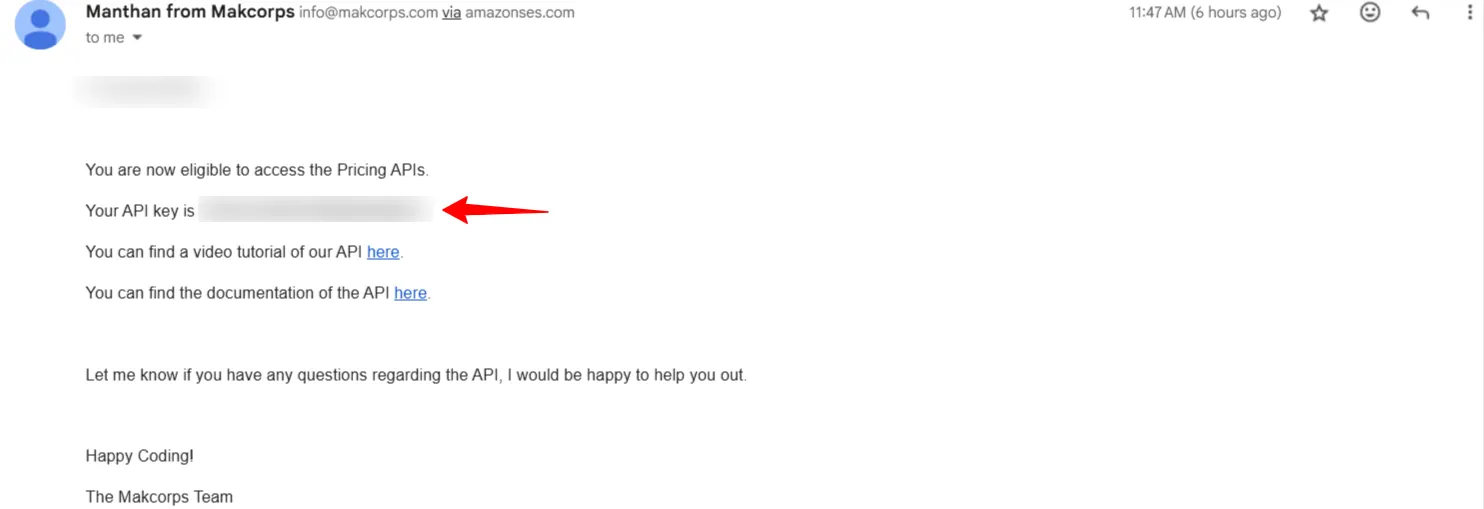
- Once verified, your API key will be sent to you via email, like this.
2. Set Up the Google Sheet with the Required Parameters
Since we’ll be using two APIs, we need to create four sheets for input and output. The first step is to extract the hotel ID for the hotels you want to track.
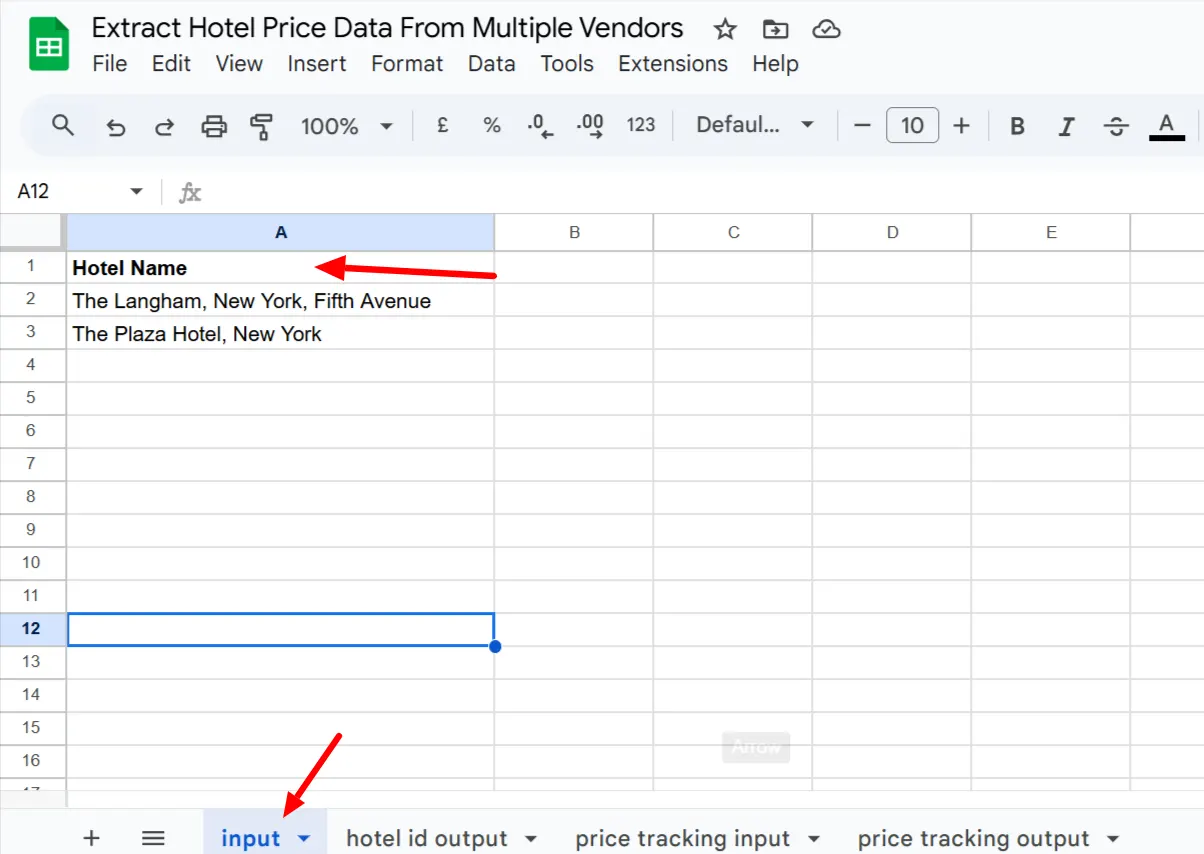
1. Create the Input Sheet for extracting Hotel ID:
- Name the sheet “input”.
- In Column A, add the heading “Hotel Name”.
- Below the heading, list the hotels you want to extract data for.
- If a hotel is part of a global chain, include the city name to ensure accurate results. (For example, instead of just “Hyatt,” write “Hyatt, New York.”)
2. Prepare Sheet for Hotel Id Output
Now that we have listed the hotel names in the “input” sheet, we need a separate sheet to store the hotel IDs retrieved from the API.
- Create a new sheet and name it “hotel id output“.
- In Column A, add the heading “Hotel Name”—this will match the names from the input sheet.
- In Column B, add the heading “Hotel ID”—this is where the API will return the unique hotel ID for each hotel listed.
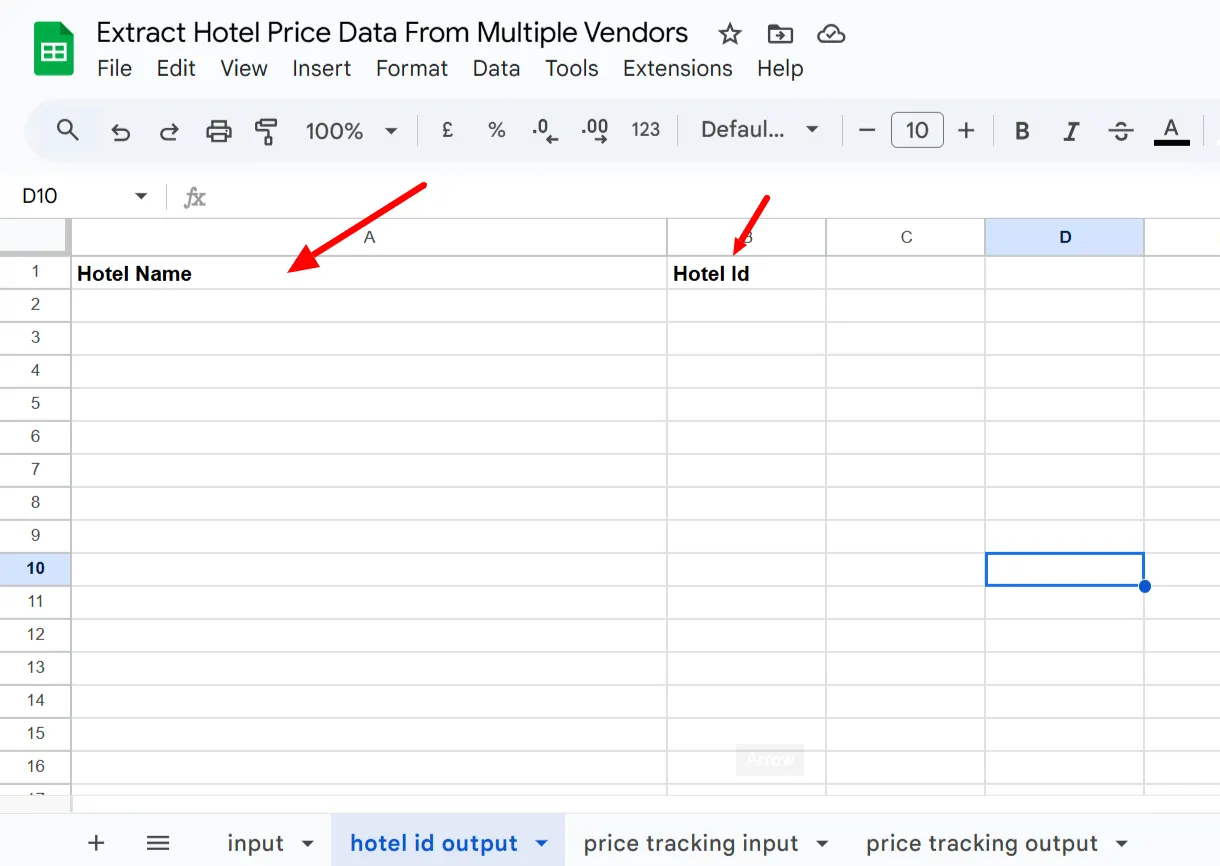
Once the API fetches the data, hotel IDs will populate next to their respective hotel names automatically. This sheet will act as a reference for the next step, where we’ll use these hotel IDs to fetch price data.
3. Fetch and Add Hotel IDs Using the API
Now that we have set up the input sheet with hotel names and the hotel_id_output sheet to store hotel IDs, it’s time to retrieve the IDs using the Hotel Mapping API.
Steps to Add the Code and Get Hotel IDs:
- Open your Google Sheet and go to Extensions > Apps Script.
- Go to Code.gs.
- Delete any existing code and paste the following script. The function will be named “getHotelIDs”, and it will appear as “fetchHotelIDs” in the Apps Script editor:
Script:
function fetchHotelIDs() {
  var ss = SpreadsheetApp.openById("YOUR_SPREADSHEET_ID"); // Your actual Spreadsheet ID
  var inputSheet = ss.getSheetByName("input"); // Sheet name for input
  var outputSheet = ss.getSheetByName("hotel id output"); // Sheet name for output
  var inputRange = inputSheet.getRange("A2:A" + inputSheet.getLastRow()); // Dynamic range for hotel names
  var hotelNames = inputRange.getValues();
  var apiResults = [];
  for (var i = 0; i < hotelNames.length; i++) {
    var hotelName = encodeURIComponent(hotelNames[i][0]);
    if (hotelName !== "") {
      var url = "https://api.makcorps.com/mapping?api_key=YOUR_MAKCORPS_API_KEY&name=" + hotelName;
      var options = {
        "method": "get",
        "muteHttpExceptions": true
      };
      var response = UrlFetchApp.fetch(url, options);
      var json = JSON.parse(response.getContentText());

      Logger.log(json); // Log API response for debugging
      if (json && json.length > 0 && json[0].hasOwnProperty("document_id")) {
        apiResults.push([hotelNames[i][0], json[0].document_id]);
      } else {
        apiResults.push([hotelNames[i][0], "No ID Found"]);
      }
    } else {
      apiResults.push([hotelNames[i][0], "Invalid Hotel Name"]);
    }
  }
  // Output results to the 'hotel id output' sheet
  if (apiResults.length > 0) {
    var outputRange = outputSheet.getRange(2, 1, apiResults.length, 2);
    outputRange.setValues(apiResults);
  }
}
Required Edits Before Running the Script:
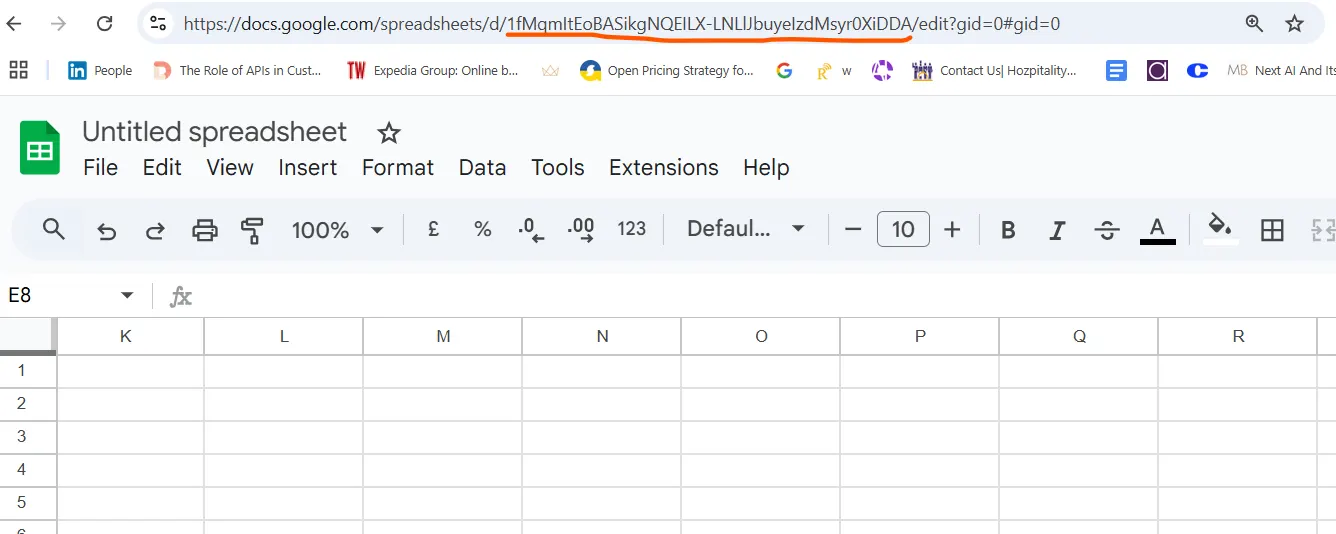
- Replace YOUR_SPREADSHEET_ID in the code with your actual Google Spreadsheet ID.
- You can find this in your Google Sheet URL (it’s the long string of letters/numbers between /d/ and /edit).
- Replace YOUR_MAKCORPS_API_KEY with your API key.
How to Run the Script:
- Click the Run button ▶ in the Apps Script editor.
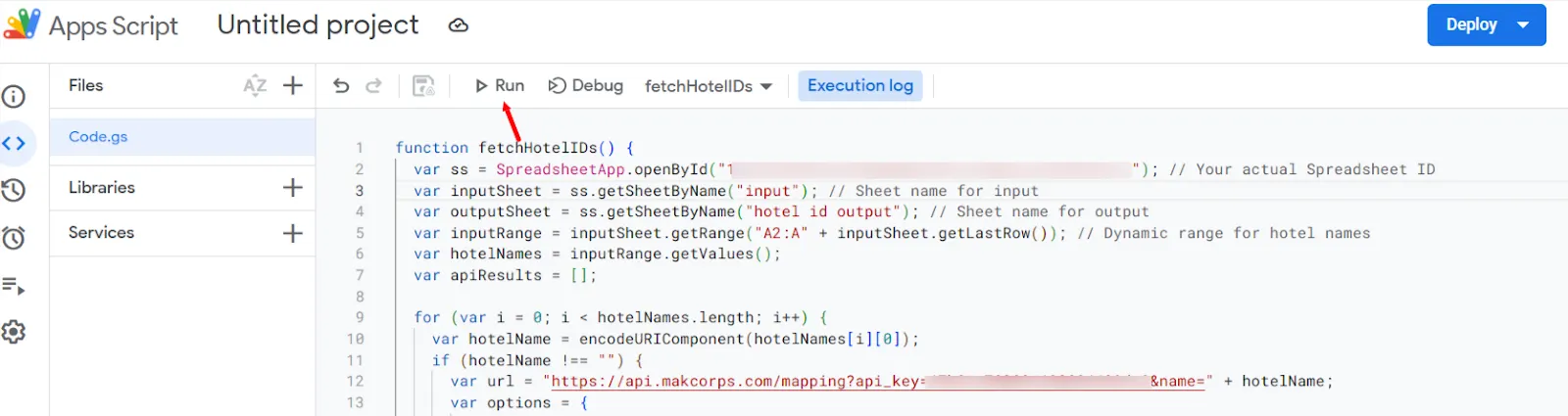
- The function will be listed as “fetchHotelIDs” in the Apps Script editor.
- The first time you run the script, Google will ask for permissions:
- Click “Review Permissions.”
- Select your Google account.
- Click “Allow” to grant the necessary access.
- Once permissions are granted, run the script again.
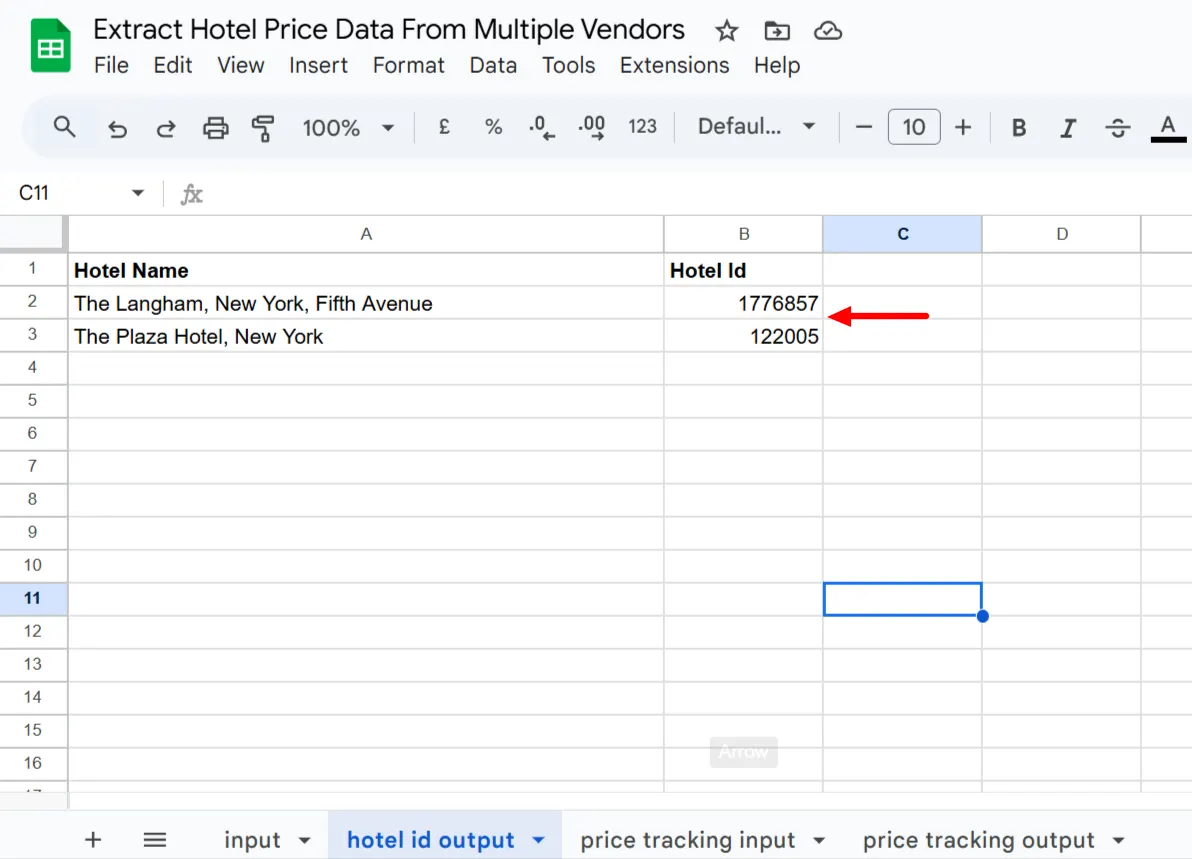
- The script will fetch hotel IDs and populate them in the hotel id output sheet next to their respective hotel names.
5. Set Up the Price Tracking Input Sheet
The “price tracking input” sheet is where you’ll enter the details needed to fetch real-time hotel prices using the Hotel Price API. Follow these steps to fill in the required details correctly.
Step 1: Create the “price tracking input” Sheet
Step 2: Add Column Headings
In Row 1, enter the following column names exactly as shown:
- Column A: Hotel Name
- Column B: Hotel ID
- Column C: Check-In Date
- Column D: Check-Out Date
- Column E: Adults
- Column F: Rooms
Step 3: Copy Hotel Names and IDs
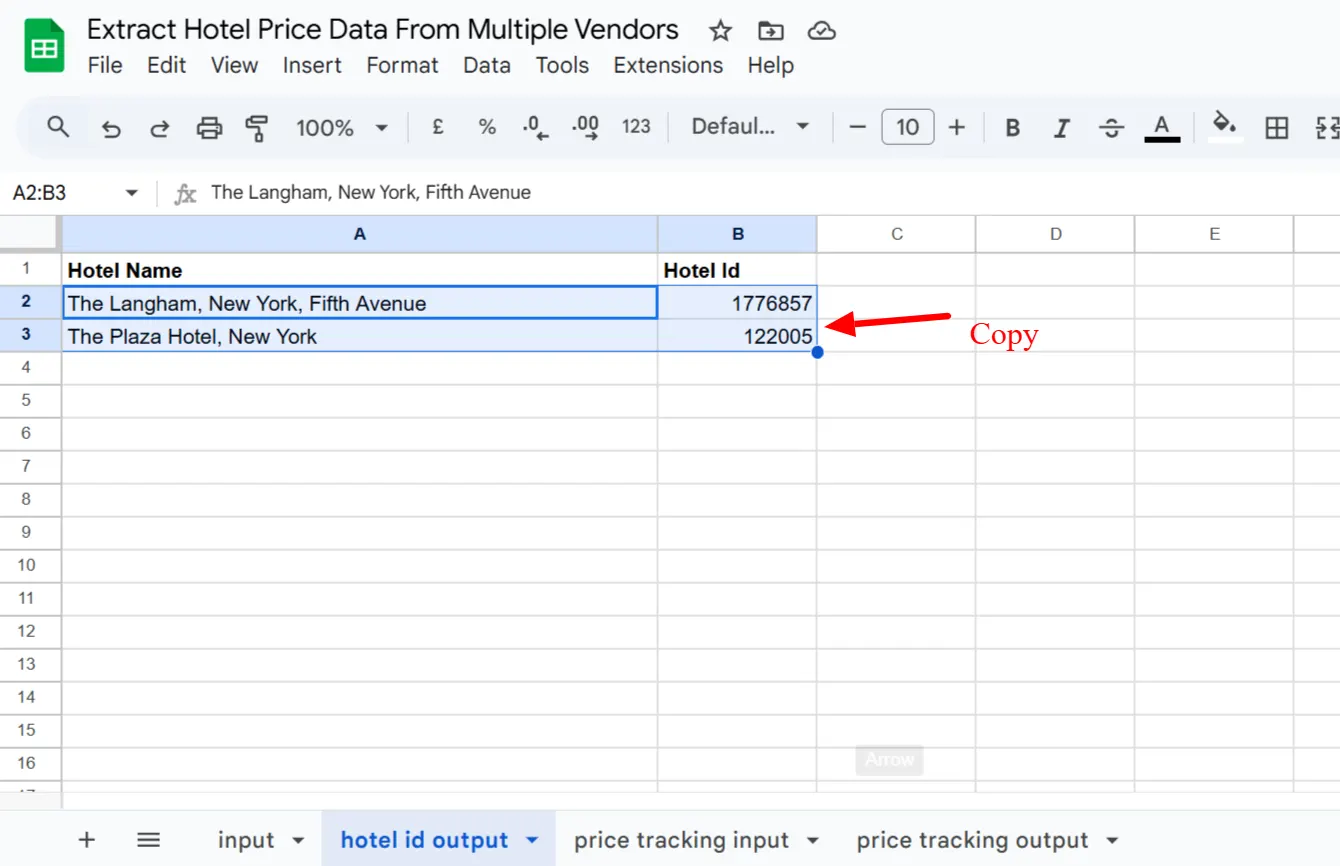
- Open the “hotel id output” sheet.
- Copy the hotel names and hotel IDs from Column A and Column B of the “hotel id output sheet” and paste them into Column A and Column of the “price tracking input” sheet.
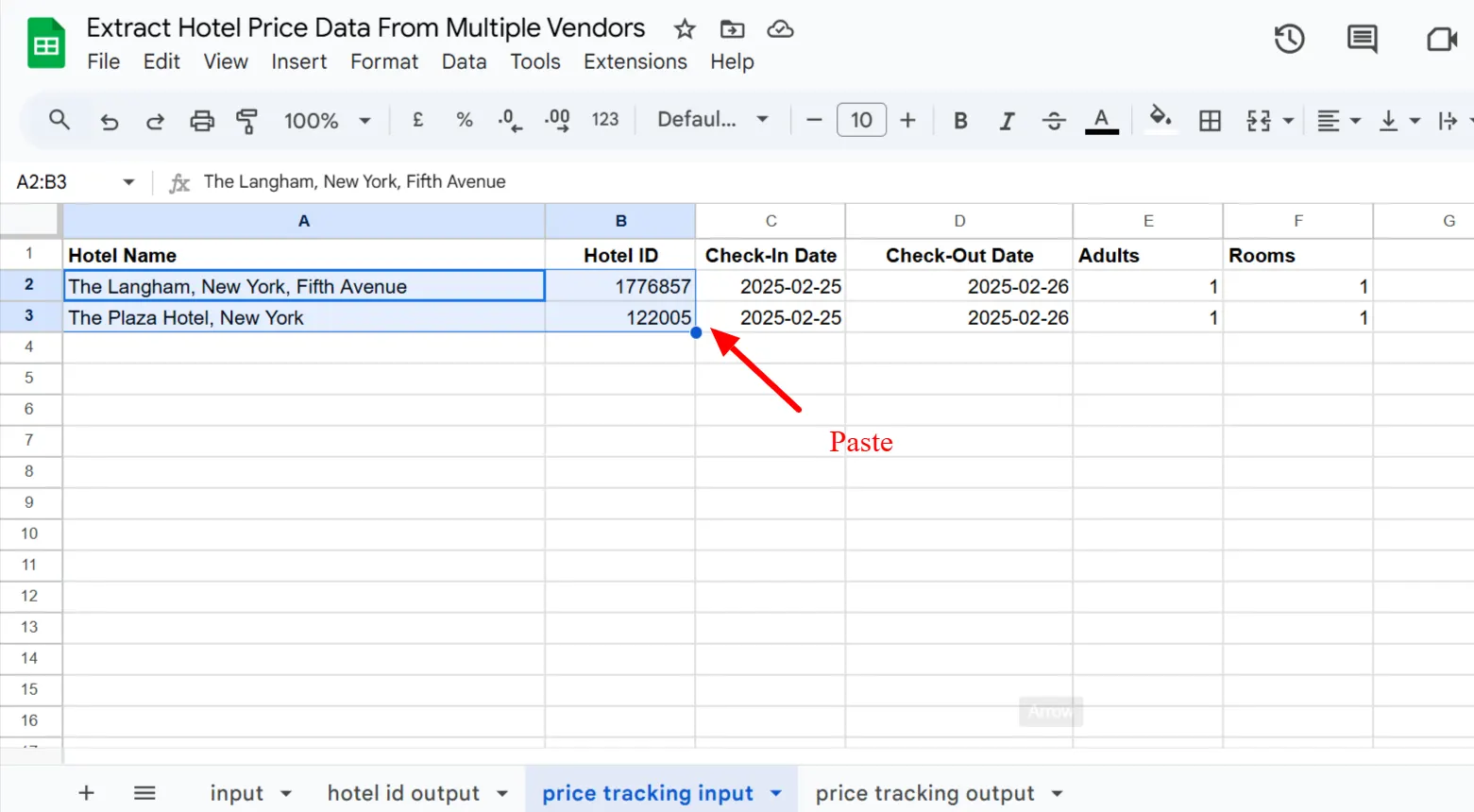
Step 4: Enter Booking Details in Price Tracking Input Sheet
- Check-In Date (Column C): Enter the check-in date in YYYY-MM-DD format.
- Check-Out Date (Column D): Enter the check-out date in YYYY-MM-DD format.
- Adults (Column E): Enter the number of adults per room.
- Rooms (Column F): Enter the number of rooms you want to check prices for.
Once all details are filled in, this sheet will serve as the input for fetching hotel prices using the API.
Next, we will write the script to fetch hotel prices and store them in the “price tracking output” sheet.
6. Set Up the Price Tracking Output Sheet
Now that we have entered the necessary input details, we need a sheet to store the hotel price data retrieved from the API.
Step 1: Create the “price tracking output” Sheet
- Click the “+” (plus) button at the bottom to add a new sheet.
- Rename it to “price tracking output” (if not already named).
Step 2: Add Column Headings
In Row 1, enter the following column names exactly as shown in the image:
- Column A: Hotel Name
- Column B: Vendors (The platform providing the price, e.g., Expedia, Booking.com, etc.)
- Column C: Price
- Column D: Tax
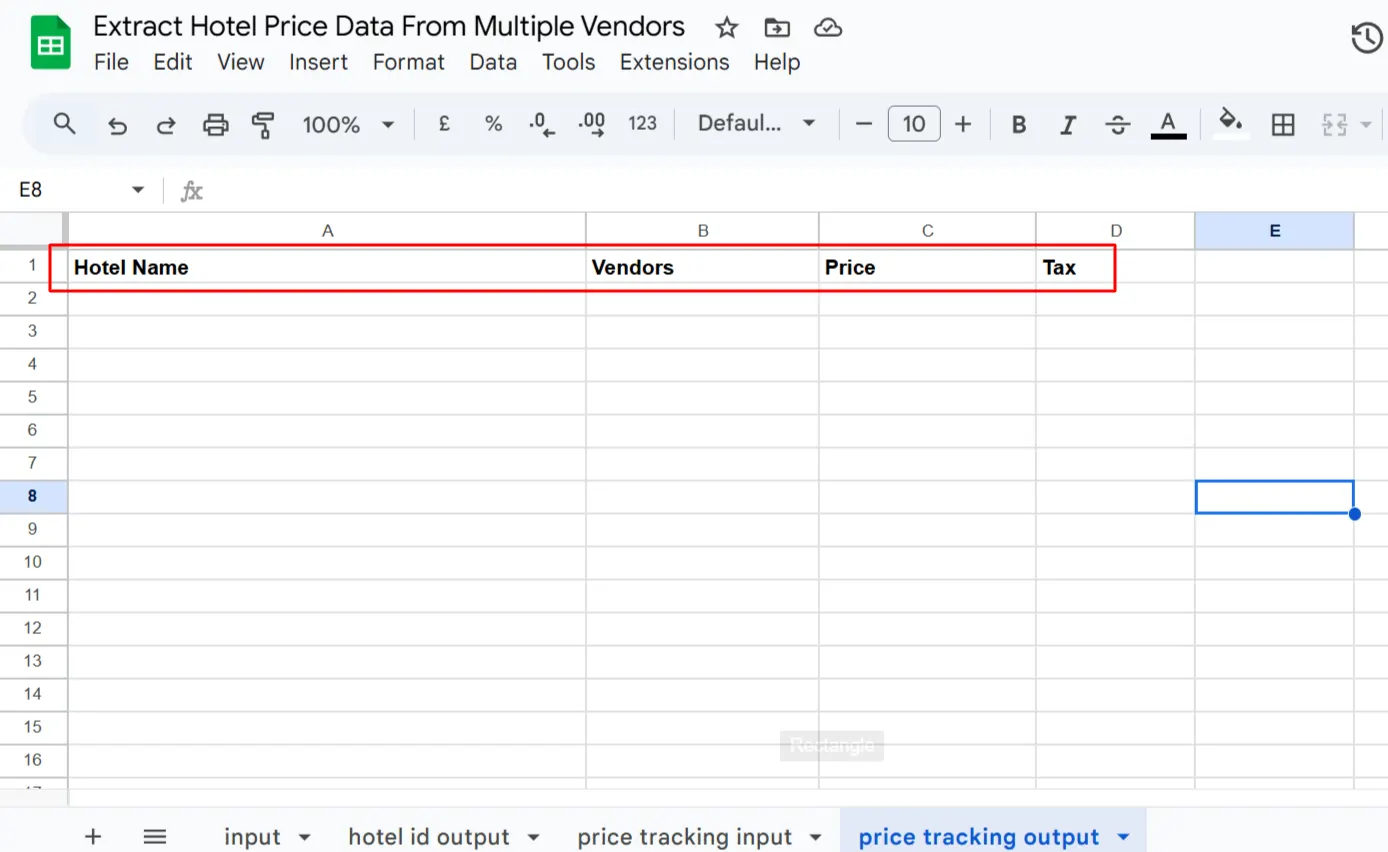
7. Fetch Hotel Prices and Populate the Output Sheet
Now that we have set up the “price tracking output” sheet, it’s time to run the script to fetch hotel price data using the Hotel Price API and populate the output sheet.
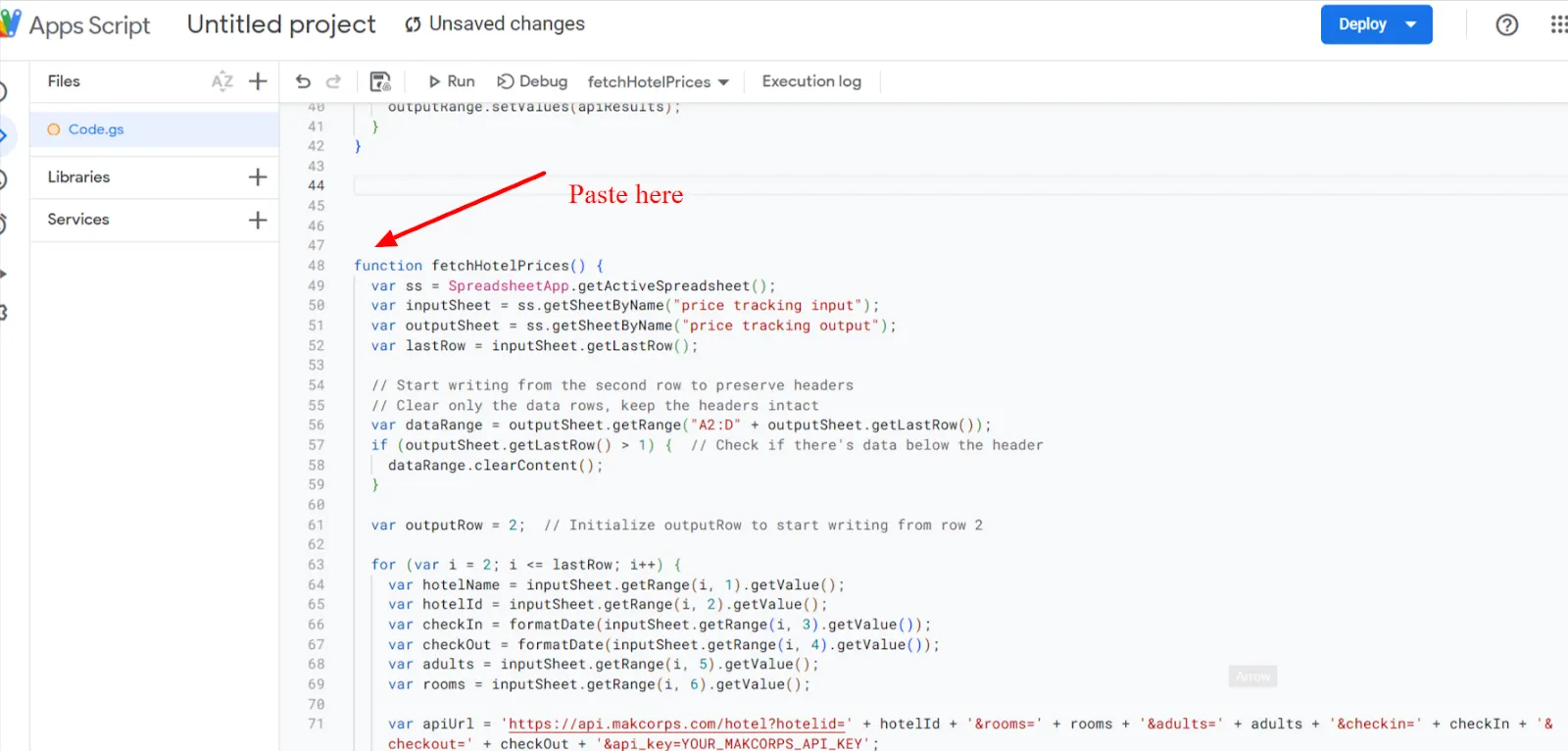
Step 1: Open Apps Script
- In your Google Sheet, go to Extensions > Apps Script > Code.gs
- Paste the following script below the existing Hotel ID script and save.
Script:
function fetchHotelPrices() {
  var ss = SpreadsheetApp.getActiveSpreadsheet();
  var inputSheet = ss.getSheetByName("price tracking input");
  var outputSheet = ss.getSheetByName("price tracking output");
  var lastRow = inputSheet.getLastRow();
  // Start writing from the second row to preserve headers
  // Clear only the data rows, keep the headers intact
  var dataRange = outputSheet.getRange("A2:D" + outputSheet.getLastRow());
  if (outputSheet.getLastRow() > 1) {  // Check if there's data below the header
    dataRange.clearContent();
  }
  var outputRow = 2;  // Initialize outputRow to start writing from row 2
  for (var i = 2; i <= lastRow; i++) {
    var hotelName = inputSheet.getRange(i, 1).getValue();
    var hotelId = inputSheet.getRange(i, 2).getValue();
    var checkIn = formatDate(inputSheet.getRange(i, 3).getValue());
    var checkOut = formatDate(inputSheet.getRange(i, 4).getValue());
    var adults = inputSheet.getRange(i, 5).getValue();
    var rooms = inputSheet.getRange(i, 6).getValue();
    var apiUrl = 'https://api.makcorps.com/hotel?hotelid=' + hotelId + '&rooms=' + rooms + '&adults=' + adults + '&checkin=' + checkIn + '&checkout=' + checkOut + '&api_key=YOUR_MAKCORPS_API_KEY';
    var options = {
      'method': 'get',
      'muteHttpExceptions': true
    };
    var response = UrlFetchApp.fetch(apiUrl, options);
    if (response.getResponseCode() == 200) {
      var json = JSON.parse(response.getContentText());
      if (json && json.comparison && json.comparison[0].length > 0) {
        var comparisonData = json.comparison[0];  // Assuming the data is in the first index
        comparisonData.forEach(function (vendorData, index) {
          var vendor = vendorData['vendor' + (index + 1)];
          var price = vendorData['price' + (index + 1)];
          var tax = vendorData['tax' + (index + 1)];
          if (vendor && price && tax) {
            outputSheet.getRange('A' + outputRow + ':D' + outputRow).setValues([[hotelName, vendor, price, tax]]);
            outputRow++;  // Increment output row for next data entry
          }
        });
      } else {
        outputSheet.getRange('A' + outputRow + ':D' + outputRow).setValues([[hotelName, 'No data', 'N/A', 'N/A']]);
        outputRow++;
      }
    } else {
      outputSheet.getRange('A' + outputRow + ':D' + outputRow).setValues([[hotelName, 'Failed to fetch', 'N/A', 'N/A']]);
      outputRow++;
      Logger.log('Failed to fetch data for Hotel ID: ' + hotelId + ' with response: ' + response.getContentText());
    }
  }
}
function formatDate(date) {
  return Utilities.formatDate(date, Session.getScriptTimeZone(), 'yyyy-MM-dd');
}Step 2: Replace YOUR_MAKCORPS_API_KEY with your API key in the code.
Step 3: Select and Run the Script
- Click on the dropdown menu in the Apps Script editor (as shown in the image).
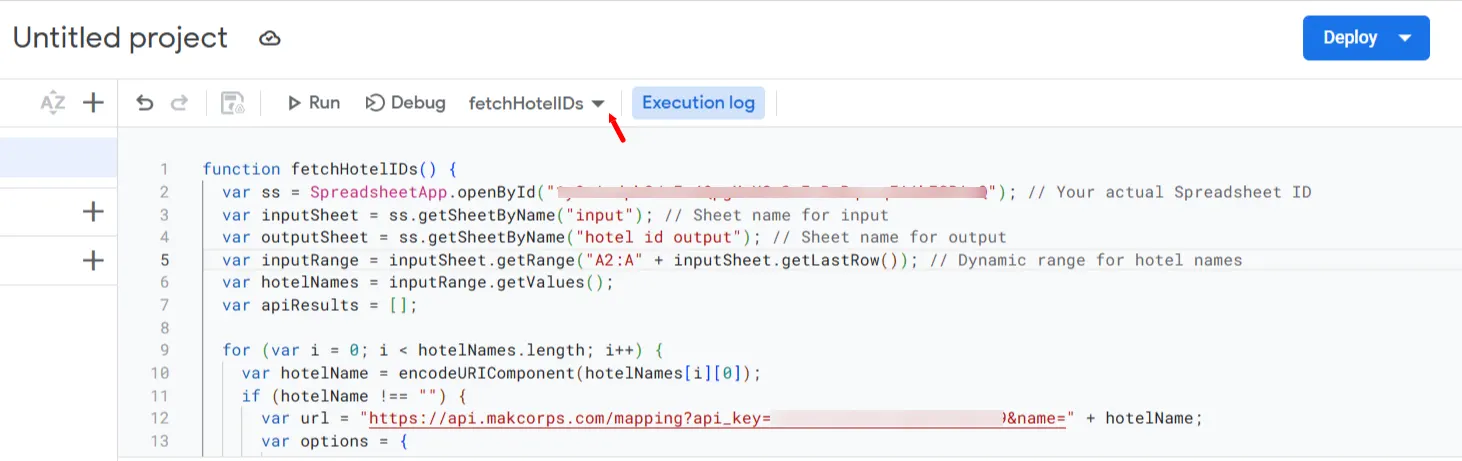
- Select “fetchHotelPrices” from the list.
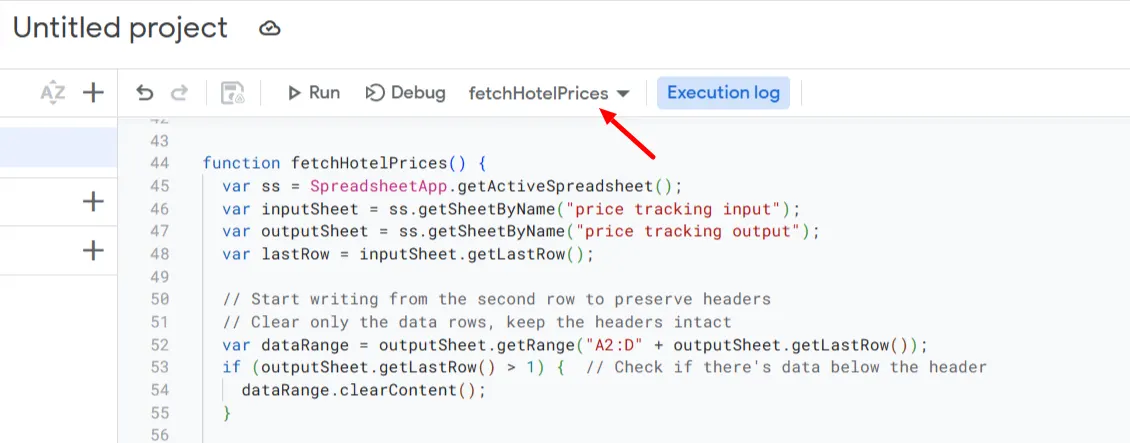
- Click the Run button ▶ to execute the script.
Step 4: Check the “price tracking output” Sheet
- The script will pull hotel prices and fill them into the output sheet.
- If the script runs successfully, vendor names, prices, and tax details will appear in their respective columns.
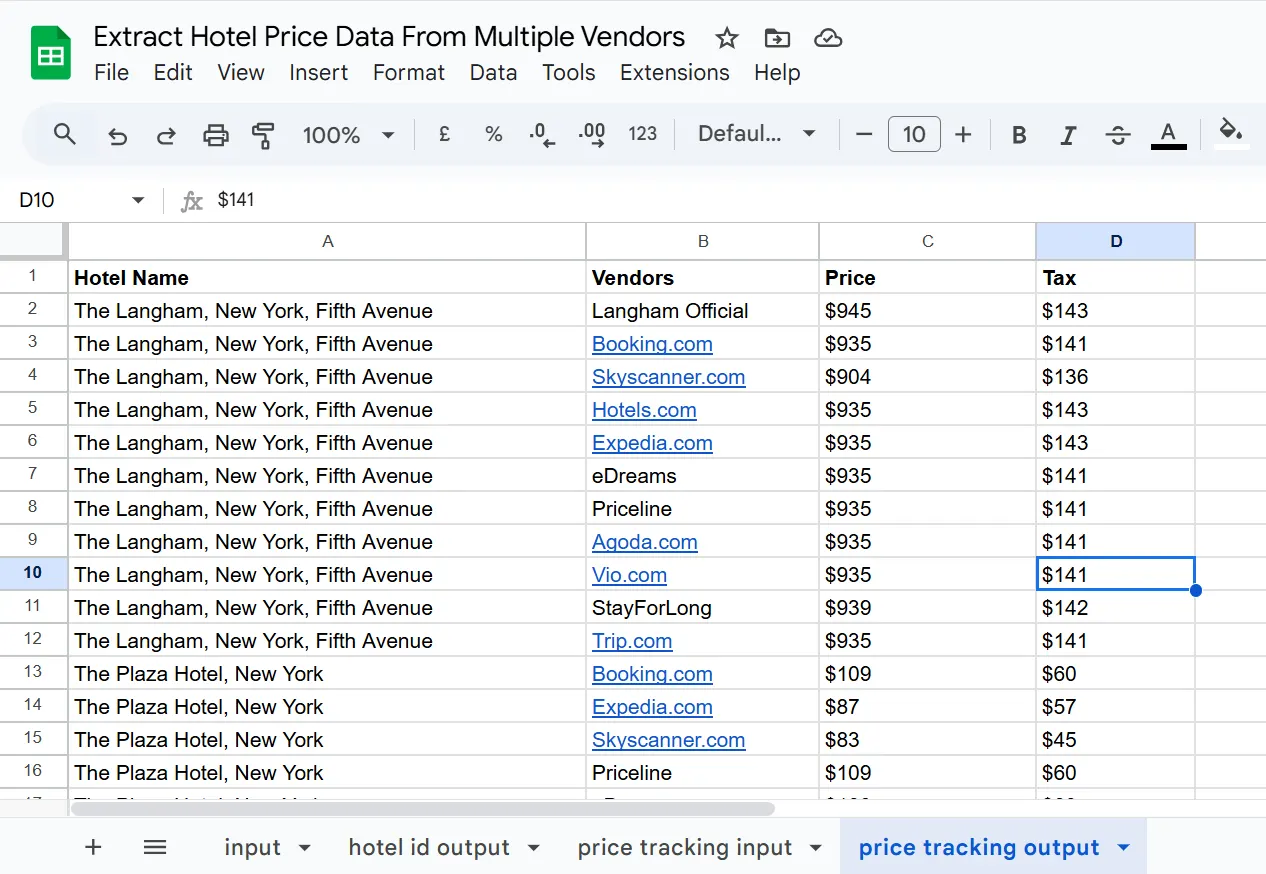
- If there’s an issue, it may show “Failed to fetch” in the output in that case, you can run the script again and check the output.
8. Add Functionality to Highlight the Cheapest Rates
The highlightLowestPrices function in the Google Sheets automatically finds and highlights the cheapest prices for each hotel listed in your sheet. This makes it easy to spot the best deals without manually comparing the prices in just a click.
Step-by-Step Guide to Implement the Script
Step 1: Open Google Apps Script
- Open your Google Sheet.
- Navigate to Extensions > Apps Script.
Step 2: Add the Script
- In the Apps Script editor, add the following script after the formatDate script:
function highlightLowestPrices() {
  const sheet = SpreadsheetApp.getActiveSpreadsheet().getActiveSheet();
  // Adjust the range as necessary to include all your data
  const range = sheet.getRange(2, 1, sheet.getLastRow() - 1, 4); // Adjust the 4 if more columns are involved
  const values = range.getValues();
  // Object to store hotel names and their lowest prices with row references
  let hotelPrices = {};
  // Iterate over each row to populate hotelPrices with the minimum prices
  values.forEach((row, index) => {
    let hotelName = row[0];
    let priceStr = row[2];
    let price = parseFloat(priceStr.replace(/^\$/, '')); // Remove dollar sign and convert to number
    if (!hotelPrices[hotelName] || hotelPrices[hotelName].price > price) {
      hotelPrices[hotelName] = { price: price, rowIndex: index + 2 }; // +2 to adjust for header and 0-index
    }
  });
  // Clear previous formatting
  sheet.getRange(2, 1, sheet.getLastRow() - 1, 4).setBackground(null); // Adjust the 4 if more columns are involved
  // Apply new formatting to the lowest price rows
  Object.keys(hotelPrices).forEach(hotel => {
    let info = hotelPrices[hotel];
    sheet.getRange(info.rowIndex, 1, 1, 4).setBackground('#62F700'); // Adjust the 4 if more columns are involved
  });
}
// Add a menu item to run the script from the spreadsheet UI
function onOpen() {
  const ui = SpreadsheetApp.getUi();
  ui.createMenu('Price Tools')
    .addItem('Highlight Lowest Prices', 'highlightLowestPrices')
    .addToUi();
}
- Save the script: Click the floppy disk icon or press Ctrl+S to save your changes.
Step 3: Refresh and Run the Script
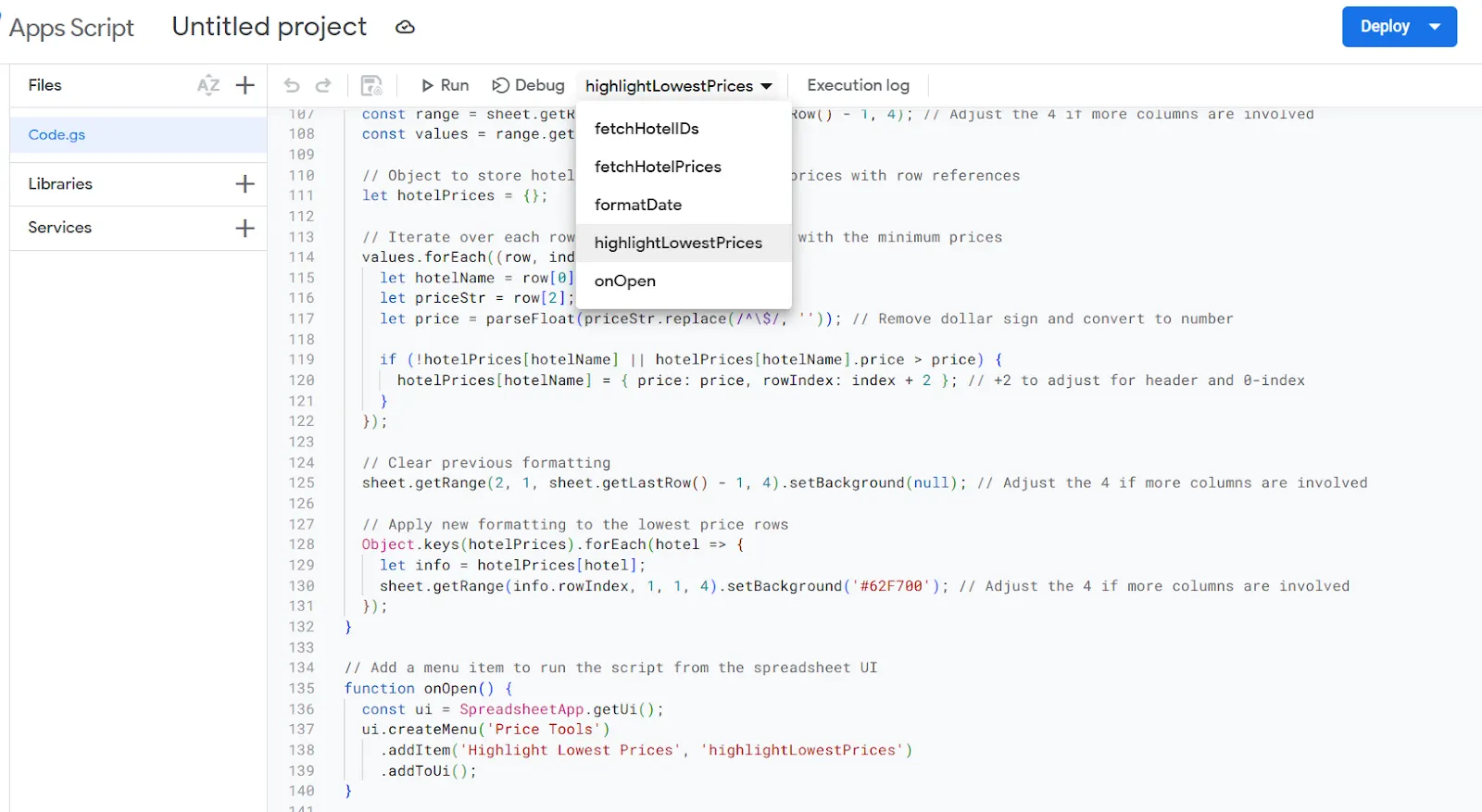
- Refresh your Google Sheets to update the interface with the new script menu.
- Select “Highlight Lowest Prices” and click on Run.
What Happens Next
- The script will automatically identify the row with the lowest price for each hotel and highlight it in green.
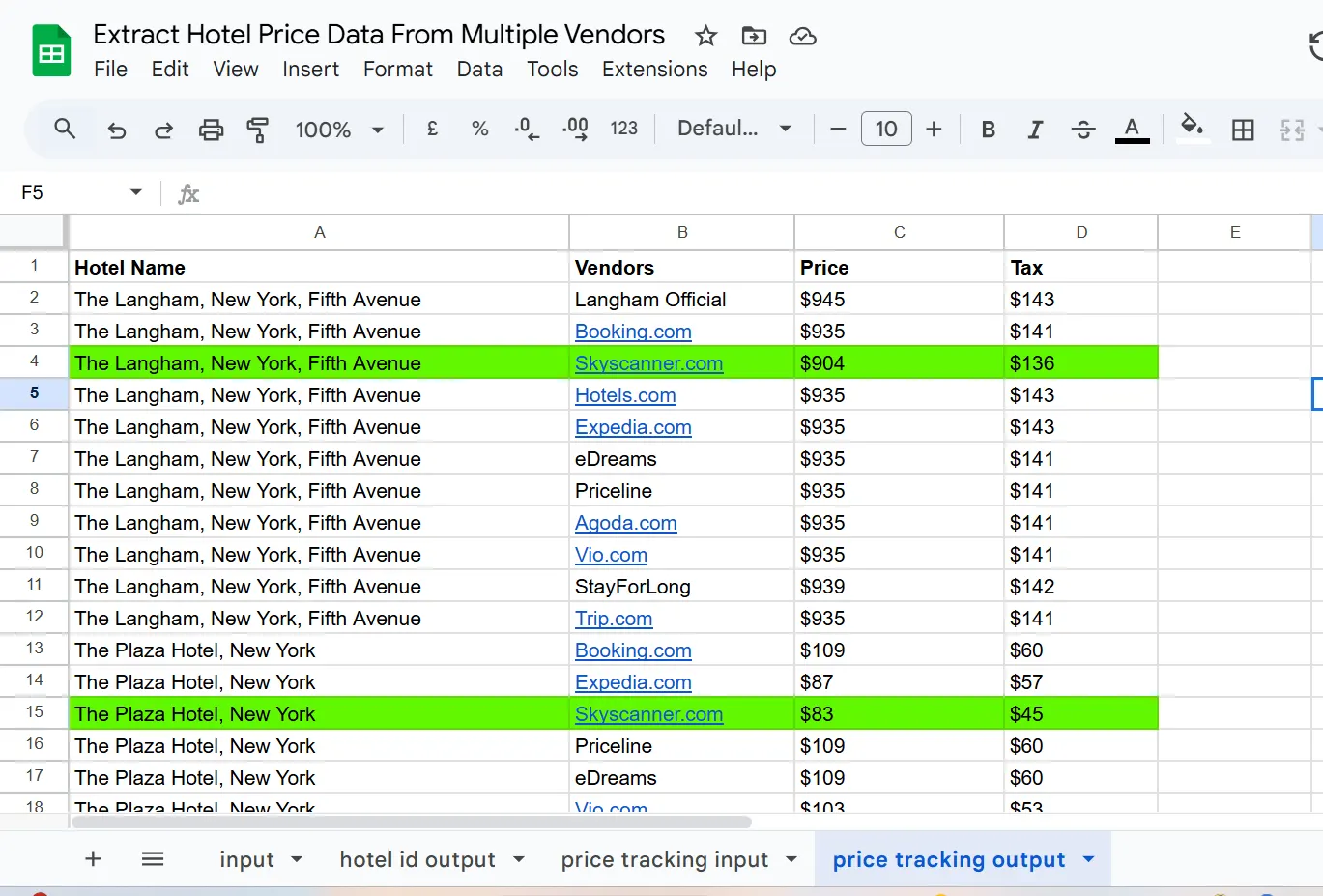
Now you can quickly spot the most affordable options without having to manually compare each entry.
By following these steps, you’ll enhance your hotel price tracking system with an automated feature that helps pinpoint the best deals effortlessly.
Get Your Free Google Sheet Blueprint
To make things even easier, We’ve created a ready-to-use Google Sheet template with everything set up for you. Just add your hotel name with the city name, replace this YOUR_MAKCORPS_API_KEY with your Makcorps API key and YOUR_SPREADSHEET_ID with your spreadsheet ID, and follow the steps in this guide to fetch real-time hotel price data from multiple vendors!
👉 Download Your Free Google Sheet Template
Wrapping Up
In this tutorial, we showed you how to extract real-time hotel prices from multiple vendors using Google Sheets and the Makcorps Hotel Price API—without any coding. As a hotelier, leveraging live pricing data helps you track competitor rates, optimize pricing strategies, and maximize revenue.
With Makcorps—one of the best hotel API providers—you get accurate, up-to-date pricing insights that give you a competitive edge in the market.
To make things even easier, grab our free Google Sheet template, follow the steps, and start tracking hotel prices instantly.
Related reading
More articles to help you stay informed and explore related topics.
Pull Hotel Price Data from Multiple Vendors with MakCorps API and n8n
Comparing hotel prices online can feel like a never-ending game. One site shows $555, another jumps to $621, and by the time you’ve checked a third, the first…
How to Pull Hotel Prices for Any City with n8n and Makcorps API
If you need hotel price data, you already know how tricky it can get. Travel agencies rely on it to stay competitive, market researchers depend on it for accur…