
How to Extract Booking.com Hotel Prices into a Google Sheets
By Neha Jangid 5 min read Updated
So, you need hotel pricing data from Booking.com, right?
Maybe you’re managing hotel listings, providing competitive pricing to your travel agency clients, or working on pricing research. Either way, you need real-time room prices for multiple hotels — all neatly organized in one place.
Some people solve this by writing code or building a custom web scraper to collect prices. But if you don’t know how to code — or you simply want a quicker, more user-friendly solution — this guide is for you.
In this tutorial, I’ll show you how to automate the entire process and pull hotel room prices in bulk using Booking.com Hotel Price API and Google Sheets. No coding is required. No complex tools. Just a simple, repeatable workflow that gets you exactly what you need.
And to make it even easier, you’ll get a downloadable Google Sheets template at the end. In which you can add the input, and connect the API, and the room rates will populate automatically.
Let’s get started.
What You’ll Need
- An account on Makcorps
- Google Spreadsheet
Step 1: Get Your API Key
First, Sign up for a free account on Makcorps.
Once you’ve signed up, check your inbox and verify your email address.
After that, you’ll receive an email with your API key — this is what you’ll use to connect to the Booking.com data.
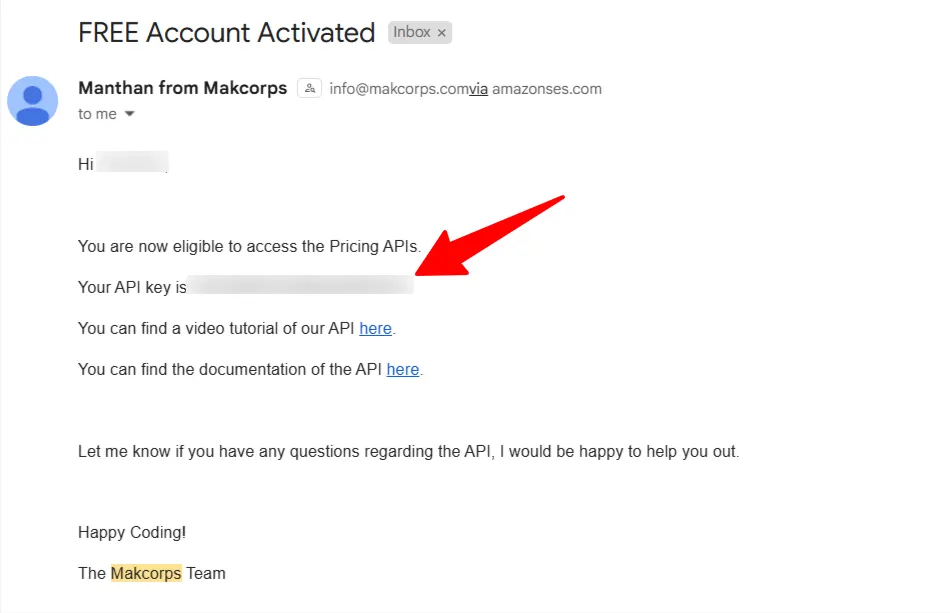
Your free account comes with 15 credits, which is perfect for testing. If you need more data later, you can upgrade your plan based on how many API calls you’ll need.
Quick note:
1 API call = pricing data for 1 hotel.
So, if you want room pricing for 10 hotels, you’ll need 10 API calls.
Step 2: Setup Google Spreadsheet
Start by opening Google Sheets and give your file a name.
Inside the sheet, you’ll create two tabs:
- Input
- Output
The Input tab is where you’ll add all the parameters needed to make your API requests to Booking.com via Booking.com Hotel Price API.
If you’re unsure about the parameters (such as check-in dates, currency, number of rooms, etc.), you can check the Booking.com Hotel Pricing API Documentation.
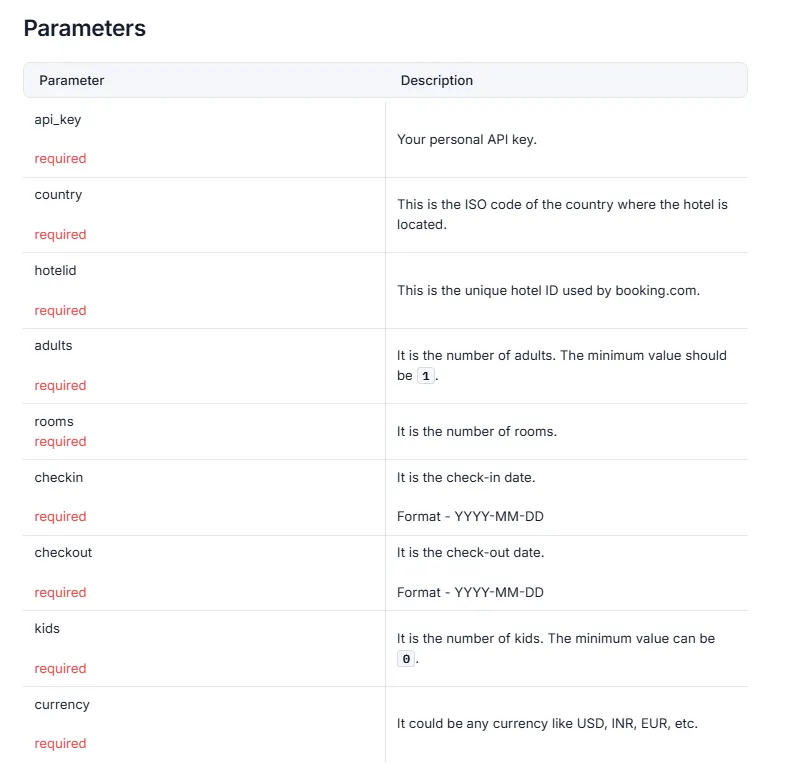
Once you know which parameters you need, go ahead and set up the columns inside the Input tab like in the example below:
Input Tab Columns:
- Hotel Name
- Country
- Booking.com (Hotel ID)
- Check-in
- Checkout
- Currency
- Kids
- Adults
- Rooms
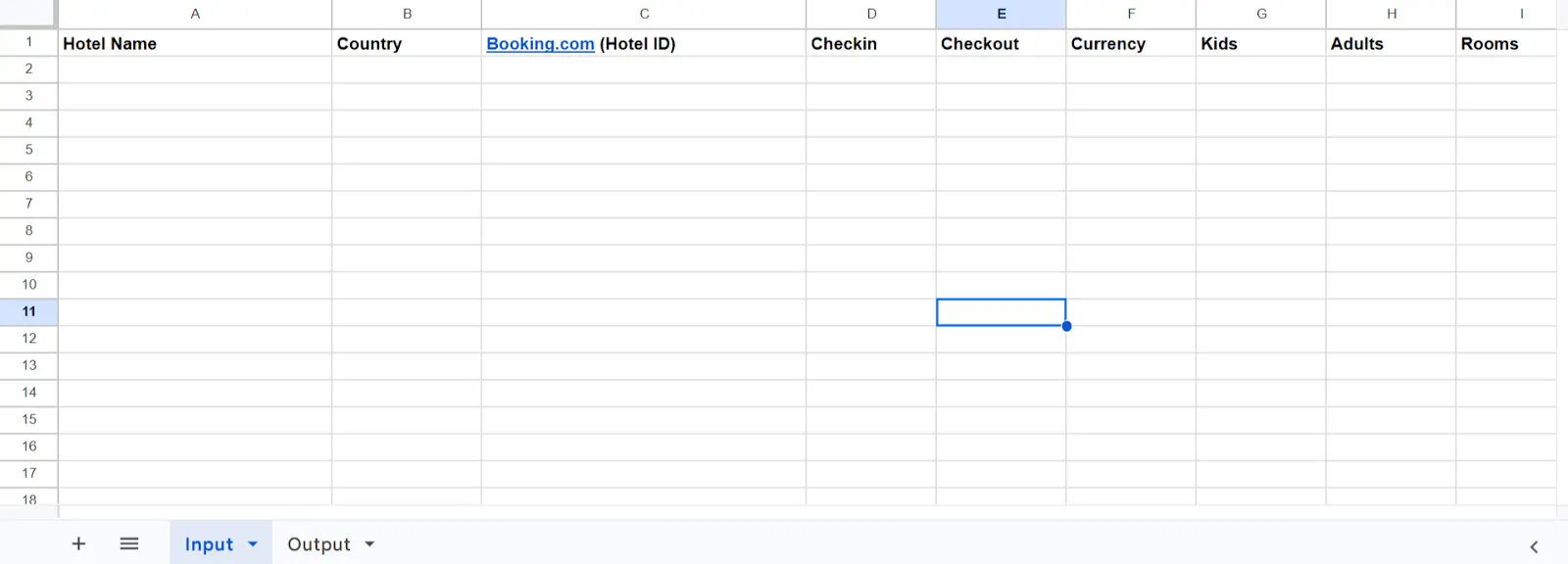
Then, switch to the Output tab.
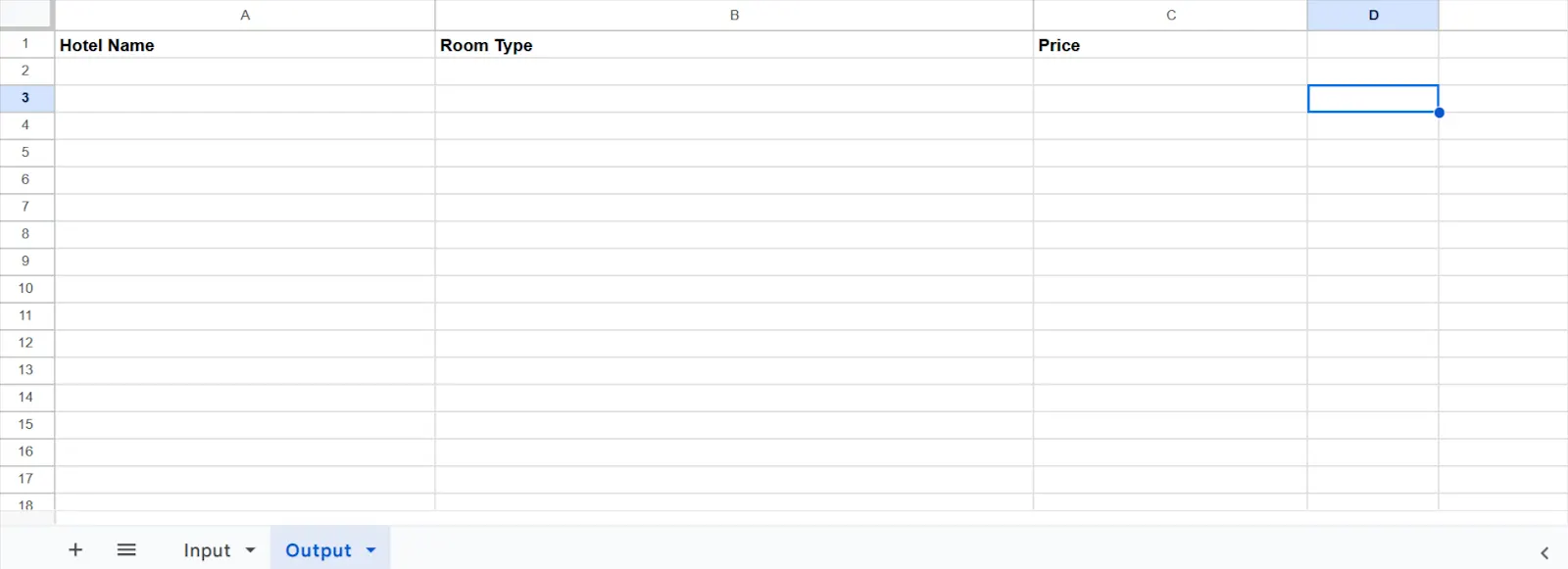
In the Output tab, we’ll map where the API will drop the results. Add the following column headers:
Output Tab Columns:
- Hotel Name
- Room Type
- Price
Step 3: Find Out Booking.com Hotel ID
For this method, you’ll need the Booking.com hotel ID for each hotel you want to collect data on. This ID isn’t something you already have, but it’s easy to find.
Here’s how:
- Go to booking.com.
- Choose your country and use Booking.com’s filters to narrow down the hotels you want to pull data from.
- If you already have a list of specific hotel names, you can search for them directly by name and location on Booking.com.
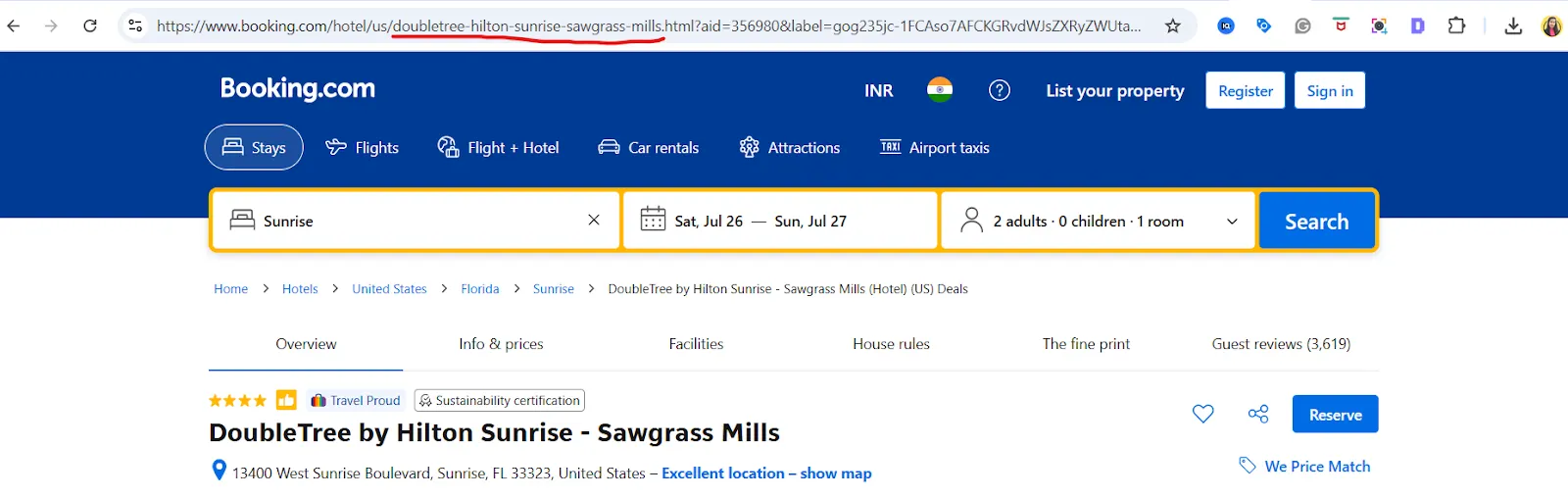
Once you land on a hotel’s page, look at the URL at the top of your browser.
The hotel ID is the text after /hotel/ and before .html.
For example:
In this URL –
https://www.booking.com/hotel/us/doubletree-hilton-sunrise-sawgrass-mills.html?…
The hotel ID is:
doubletree-hilton-sunrise-sawgrass-mills
💡 Pro tip:
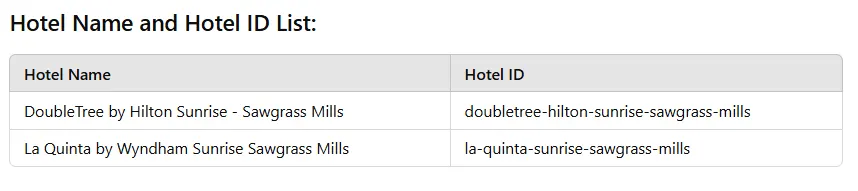
If you’re collecting URLs in bulk, you can paste them into ChatGPT and ask:
“Extract the hotel IDs from these Booking.com URLs. Look for the part after /hotel/ and before .html. And create a table with the hotel name and hotel id”
ChatGPT will generate a clean list of hotel IDs along with hotel names, ready to paste directly into your input sheet. This can save you a lot of time, especially when working with multiple URLs.
Step 4: Fill in the Details in the Input Sheet
Now that you have your hotel IDs, it’s time to complete the Input sheet.
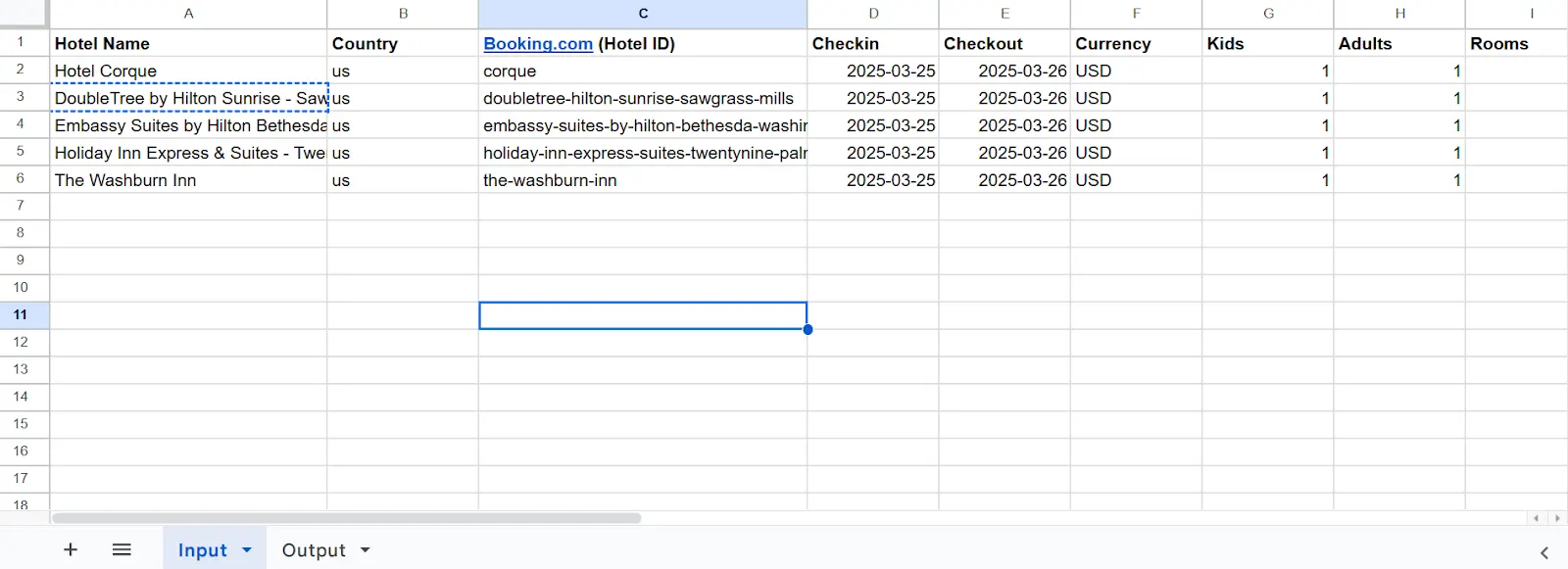
Make sure you fill in all the required columns, including hotel name, country, hotel ID, check-in, check-out, currency, number of kids, adults, and rooms.
Important:
Your check-in and check-out dates must be in this format:
yyyy-mm-dd (for example: 2025-03-26).
If the dates aren’t formatted this way, the code may not work.
Before moving on, double-check all your inputs. Make sure they match the API parameters required.
See the screenshot below to get a clear idea of how the sheet should look once filled out.
Step 5: Add the Appscript
Now that your Input sheet is ready, it’s time to pull the data into the Output sheet.
To do this, you’ll use a Google Apps Script. Don’t worry — it’s just a quick copy-paste job with a small edit.
Here’s what to do:
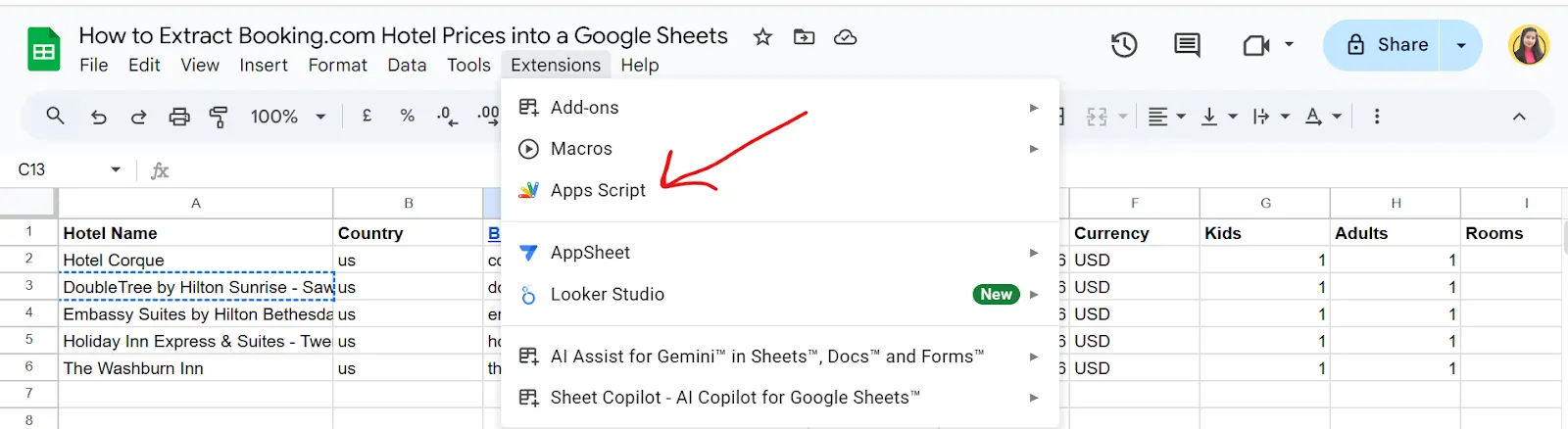
- In Google Sheets, go to Extensions > Apps Script.
- In the editor, open the Code.gs file.
- Copy the provided script and paste it inside the file.
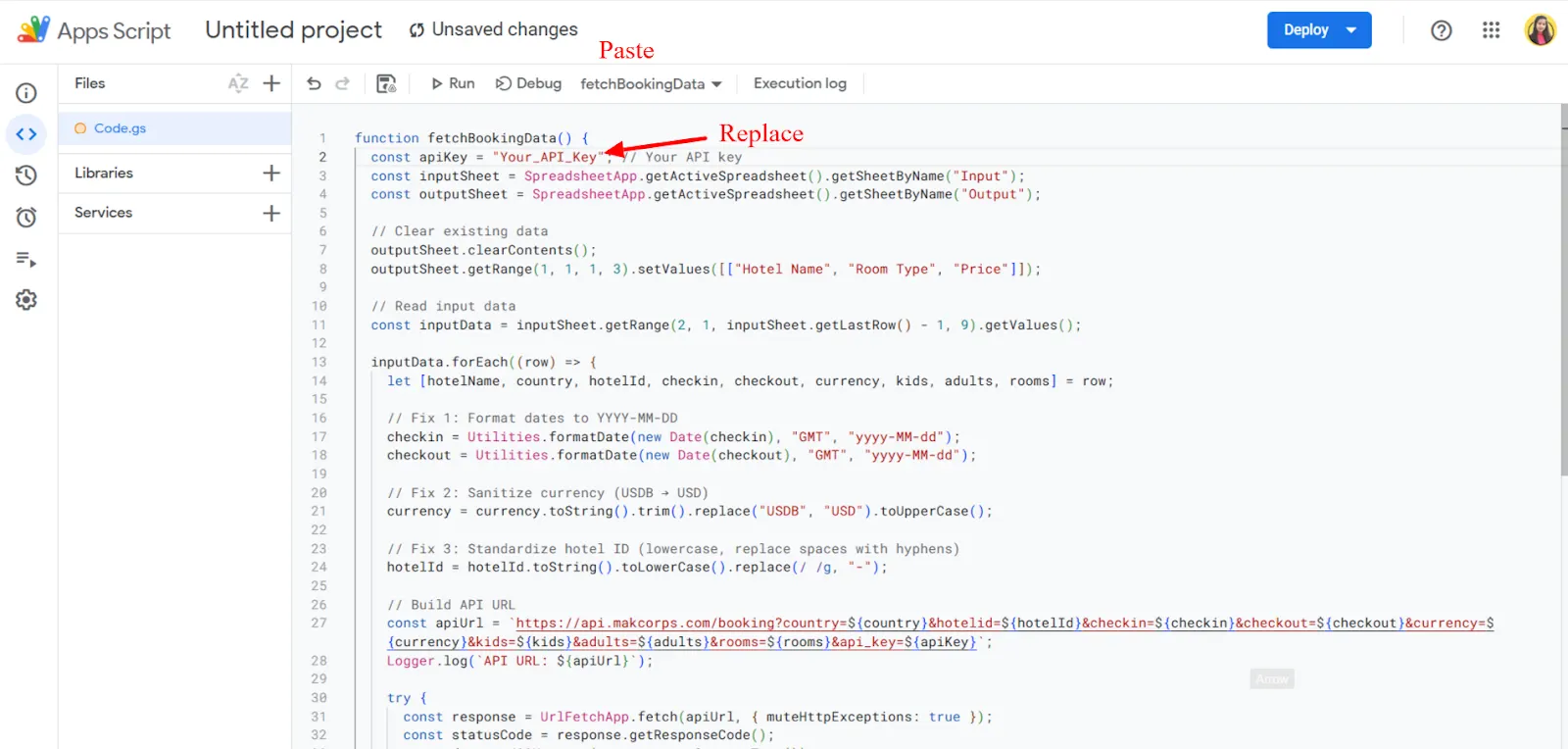
- Replace “your_api_key” in the code with your actual Makcorps API key (the one you received by email).
- Save the script.
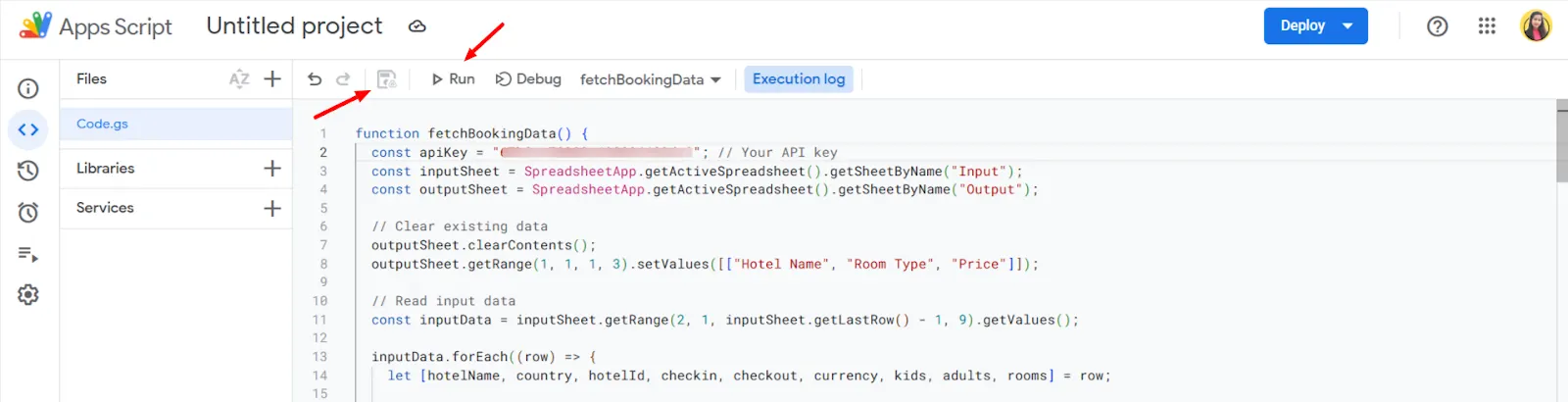
- Click Run.
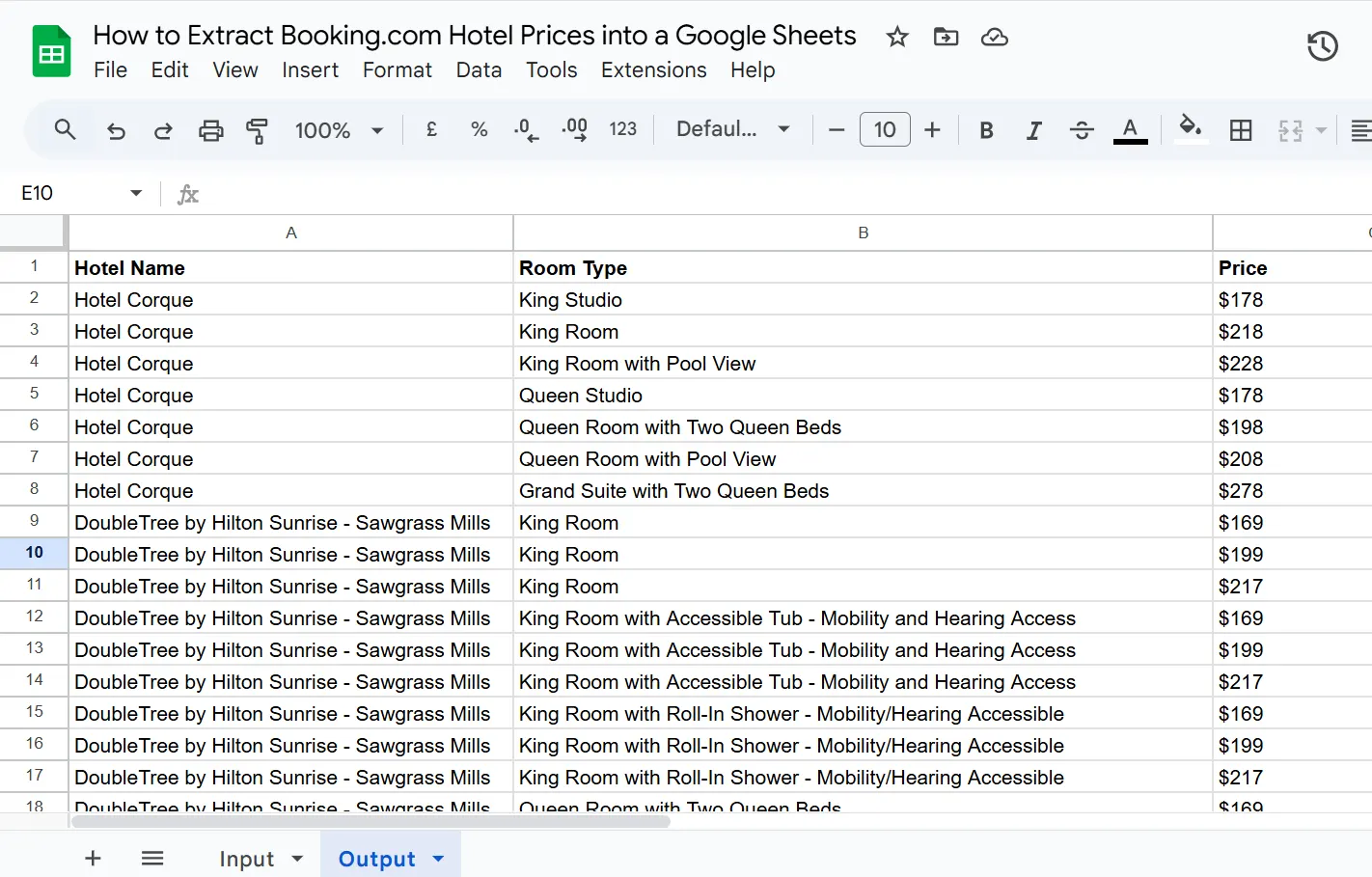
Once you run the script, switch to your Output tab. You’ll now see the hotel room prices and the room types automatically populated.
Step 6: Check the Output
The data is filled into the “output” tab.
Get the Pre-Built Blueprint
To simplify your work, we’ve crafted a pre-built blueprint for you. Just download it and click on “Make a Copy” to easily customize it by adding hotel names and parameters to gather the information you need. Modify the API in the code as required. You’ll find detailed instructions on how to retrieve your “API key” in Step 5.
Wrapping Up:
Extracting Booking.com hotel prices into Google Sheets is an essential solution for hoteliers, revenue managers, and travel industry professionals looking to improve pricing workflows.
By using Google Sheets automation with a hotel API provider like Makcorps Hotel Price API, you can collect real-time pricing data from multiple vendors.
This helps your team make faster decisions based on accurate data. It also reduces manual price research and supports better competitive analysis. For hotel data extraction and price monitoring, this method provides a clear advantage.
Additional Resources to Check Out:
Related reading
More articles to help you stay informed and explore related topics.
Pull Hotel Price Data from Multiple Vendors with MakCorps API and n8n
Comparing hotel prices online can feel like a never-ending game. One site shows $555, another jumps to $621, and by the time you’ve checked a third, the first…
How to Pull Hotel Prices for Any City with n8n and Makcorps API
If you need hotel price data, you already know how tricky it can get. Travel agencies rely on it to stay competitive, market researchers depend on it for accur…